> For the complete documentation index, see [llms.txt](https://docs.intelligems.io/llms.txt). Markdown versions of documentation pages are available by appending `.md` to page URLs; this page is available as [Markdown](https://docs.intelligems.io/checkout-experiences/checkout-test-qa-checklist.md).
# Checkout Experience QA Checklist
## How Checkout Experiences Work:
{% hint style="success" %}
**Let Atlas QA take the first pass.** Our quality assurance agent reviews your test configuration and your live storefront and returns a report telling you what's broken, why it matters, and how to fix it — with screenshots. Run it from the **QA & Preview** tab of any test. [Learn more](/general-features/atlas-ai/atlas-qa.md).
{% endhint %}
## How Checkout Tests Work:
When you create and save your Checkout Experience, you configure blocks in Intelligems and add them to your Shopify checkout using unique Location IDs. Once you start your experience, Intelligems will automatically display the correct block to each shopper based on their test group and other defined criteria.
## What to Check First:
Before heading to your site to preview your experience, there are a few things you should check to make sure your integration is functional:
* [ ] Is Intelligems JavaScript in your live theme? Check out [this article](/getting-started/adding-intelligems-script-to-your-theme.md) for more information on where to find this.
* [ ] Have you added the necessary Intelligems A/B Testing blocks to your Shopify checkout? Check out [this article](/checkout-experiences/getting-started-with-checkout/testing-checkout-experiences.md#step-5-add-blocks-to-shopify-checkout) for more information on how to do this.
## Previewing your Experience:
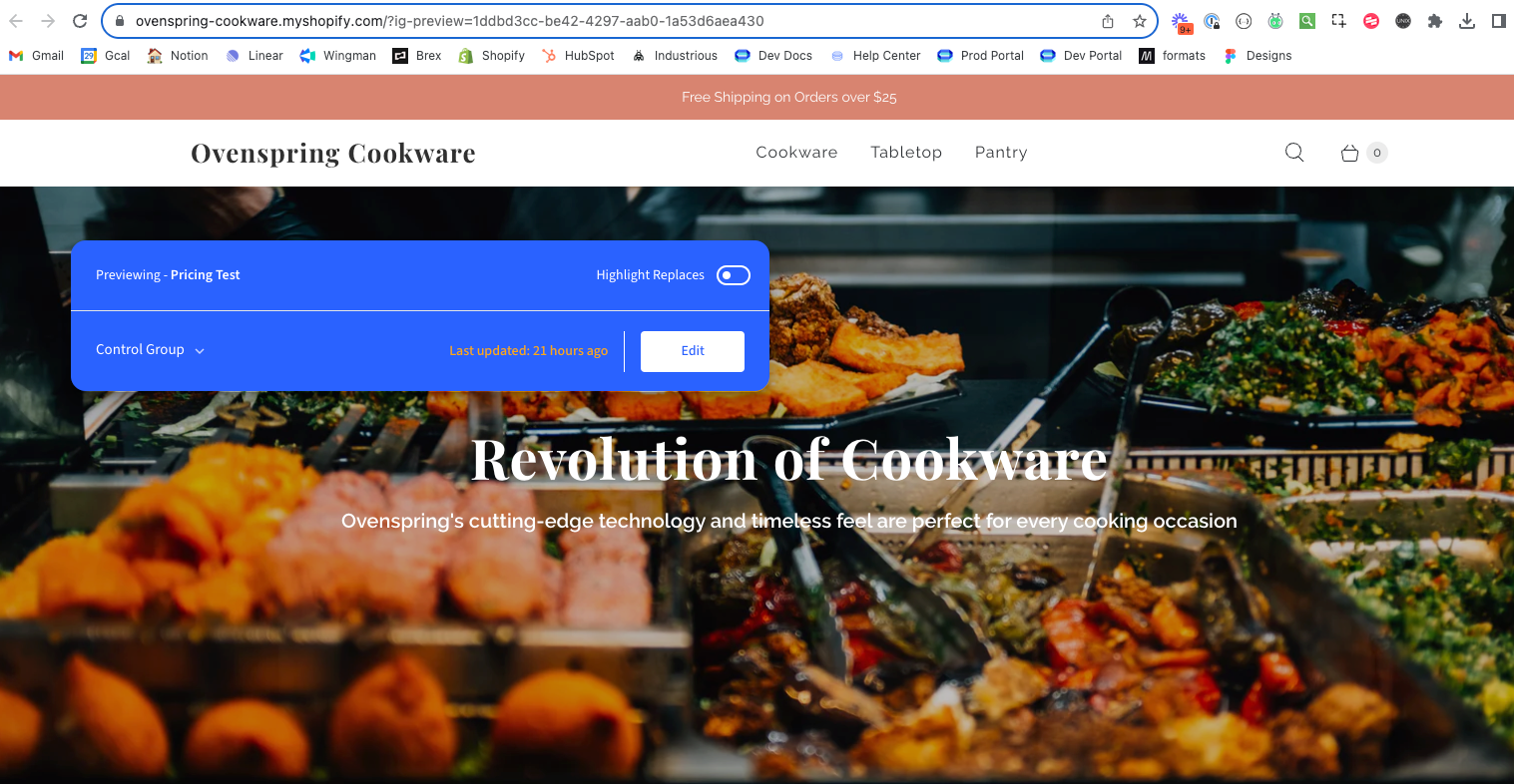
Open your experience and go to the **Preview** tab. Pick the theme you want, then click **Open preview** to load your site with the Intelligems widget enabled. **Preview on mobile** gives you a QR code and a **Copy link** button per variation.
This will open your site up in a new window with the Intelligems preview widget enabled. In the preview widget, you'll see:
1. The name of the Experience you are previewing in the top left
2. A dropdown to switch between different test groups in the bottom left (if it is a test)
3. A toggle to highlight any replacements in the top right
4. An edit button in the bottom right: this enables integration mode, where you can edit onsite content
### Step 1: Confirm that blocks are displaying correctly
Now it's time to verify your blocks are appearing correctly in your checkout. Choose one of the test groups from the preview widget dropdown, and add a product to your cart.
#### Navigate to the checkout page
Proceed through your cart to the checkout page. This is where your blocks will appear.
#### Verify the correct block is visible
**If you're testing one block in multiple locations:**
* [ ] Check that the block appears in the correct position for the selected test group
* [ ] If you're in the "Header" group, confirm the block appears near the top/header area
* [ ] If you're in the "Below Total" group, confirm the block appears below the order total
* [ ] Switch between test groups and verify each block appears in its designated position
* [ ] Confirm that only one block appears at a time (not multiple blocks simultaneously)
**If you're testing different content in the same checkout location:**
* [ ] Check that the correct design/content appears for the selected test group
* [ ] If testing different colors, verify the correct color variation shows
* [ ] If testing different text, verify the correct messaging appears
* [ ] If testing different icons, verify the correct icons display
* [ ] Switch between test groups and confirm the content updates while staying in the same position
### Step 2: Check block styling and formatting
Regardless of test type, verify that:
* [ ] Icons display correctly and are the right size
* [ ] Text is readable and properly formatted
* [ ] Colors match your configuration
* [ ] Spacing looks correct (not too cramped or too spread out)
* [ ] The block fits well within the checkout design
* [ ] All badges within the block are visible (if you have multiple badges)
Be sure to test multiple scenarios to ensure the blocks are always displaying correctly. This list is not exhaustive, and these may not all be applicable to your site, but a few scenarios we recommend testing include:
* Different checkout states and products
* If you have a control group with no block, verify nothing appears
* Verify targeting is working (if applicable)
* Test on multiple devices (desktop and mobile) and browsers (such as desktop Chrome and mobile Safari) to confirm there are no discrepancies.
Complete these steps in each test group, being sure to refresh or newly navigate to checkout when you switch to a new test group! If you notice any issues, or have any questions, please feel free to [reach out to support!](https://portal.usepylon.com/intelligems/forms/intelligems-support-request)
### What happens next?
Now that you've completed the QA checklist for your Checkout Test, you can start the test!
---
# Agent Instructions
This documentation is published with GitBook. GitBook is the documentation platform designed so that both humans and AI agents can read, navigate, and reason over technical content effectively. Learn more at gitbook.com.
## Querying This Documentation
If you need additional information that is not directly available in this page, you can query the documentation by asking a question.
Perform an HTTP GET request on the following URL with the `ask` and `goal` query parameters:
```
GET https://docs.intelligems.io/checkout-experiences/checkout-test-qa-checklist.md?ask=&goal=
```
`ask` is the immediate question: it should be specific, self-contained, and written in natural language.
`goal` is what the user is ultimately trying to achieve, the reason they need the answer. Sharing it helps GitBook give you a better, more relevant answer. A goal is most helpful when it describes the outcome the user wants rather than restating the question. For example, with `ask=how do I create an API token`, a goal like `automate deployments from our CI pipeline` lets GitBook tailor the answer to that use case.
The response will contain a direct answer to the question and relevant excerpts and sources from the documentation.
Use this mechanism when the answer is not explicitly present in the current page, you need clarification or additional context, or you want to retrieve related documentation sections.