> For the complete documentation index, see [llms.txt](https://docs.intelligems.io/llms.txt). Markdown versions of documentation pages are available by appending `.md` to page URLs; this page is available as [Markdown](https://docs.intelligems.io/content-experiences/content-test-qa-checklist.md).
# Content Experience QA Checklist
{% hint style="info" %}
This QA list is specific to a content test. If you are QAing a [shipping test](/shipping-experiences/shipping-test-qa-checklist.md) or a [pricing test](/pricing-experiences/price-test-qa-checklist.md), please check out QA checklists for those types of tests!
{% endhint %}
{% hint style="success" %}
**Let Atlas QA take the first pass.** Our quality assurance agent reviews your test configuration and your live storefront and returns a report telling you what's broken, why it matters, and how to fix it — with screenshots. Run it from the **QA & Preview** tab of any test. [Learn more](/general-features/atlas-ai/atlas-qa.md).
{% endhint %}
Once your content experience is setup, you'll need to QA your site to make sure everything is working as it should be. Before heading to your site, there are a few things you should check first to make sure your integration is functional:
* [ ] Is Intelligems JavaScript in your live theme? Check out [this article](/getting-started/adding-intelligems-script-to-your-theme.md) for more information on where to find this.
* [ ] Are you running a [Theme test](/content-experiences/content-experiences-overview/how-to-set-up-a-theme-change-experience.md)? If you are, is Intelligems JavaScript in the each of themes you are testing as well?
Once you have confirmed all of the above, you can preview the test on your live site. Enter Preview mode by clicking the `...` next to your test and select `Preview`
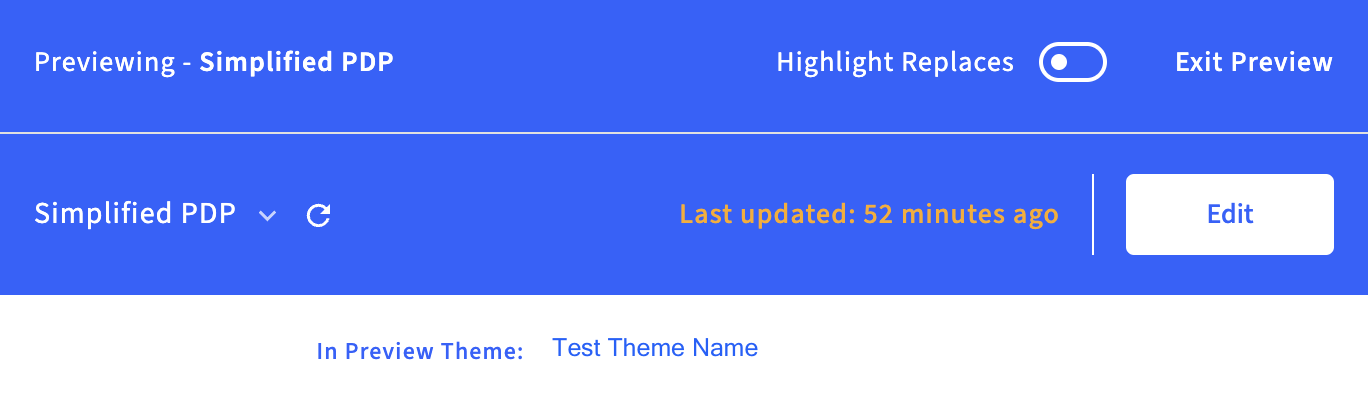
This will open your site up in a new window with the Intelligems preview widget enabled. In the preview widget, you'll see:
1. The name of the test you are previewing in the top left
2. A dropdown to switch between different test groups in the bottom left
3. A toggle to highlight any replacements in the top right
4. An edit button in the bottom right; this enables integration mode, where you can edit any replacements
Now that you are on your site, use the preview widget to toggle between your test groups to make sure the correct content is showing on your site for each test group. What you should check depends on what type of content test you are previewing. For a few areas you should check for each test type, see below.
#### Theme Change Experiences
* [ ] When you switch test groups in the dropdown, does the theme update to display the correct theme? You can check this based on differences that you know of in the test theme, or by searching the source code for the current theme name. You should also see a message similar to the below at the bottom of the preview widget for any themes that are not currently live.
* [ ] Does a Shopify preview bar show at the bottom of your window when you are in a test theme? This shouldn't happen; confirm that the Intelligems JavaScript is in all themes included in the test in both the theme.liquid and the checkout.liquid files.
* [ ] **Key Steps:**
1. Enter preview mode in the control group
2. Open JavaScript Console (`Cmd+Option+J` Mac / `Ctrl+Shift+J` Windows)
3. Type `Shopify.theme` to see current theme details
4. Switch groups and check that theme changes
**What to verify:** Control shows your live theme name and version, variant shows the different test theme name and version.
{% embed url="" %}
#### Template Change Experiences
* [ ] When you switch test groups in the dropdown, are the correct templates used where they are being tested? You can check this based on differences that you know of in the templates.
* [ ] **Key Steps:**
1. Start in preview mode on the control group
2. Open Chrome Developer Tools → JavaScript Console (`Cmd+Option+J` Mac / `Ctrl+Shift+J` Windows)
3. Type `_template` to see the current template name
4. Switch groups and verify the template name changes
**What to verify:** Control shows base template (e.g., `product`), variant shows template with suffix (e.g., `product.123456`)
{% embed url="" %}
#### Redirect Experience
* [ ] Go to a page that is included in a redirect while in a non-control group in the preview widget. Are you redirected to the correct link?
* [ ] Check the above for each experience group and page being tested. You'll need to navigate away from the test page and go back once you have changed groups to be redirected.
* [ ] Do you have the Redirect Once checkbox selected for any of your redirects? Read more about how that functions [here](/content-experiences/content-experiences-overview/how-to-set-up-a-redirect-experience.md) and confirm you have the correct setting on for your experience.
#### Content Edit Experiences
* [ ] Navigate to a location on your website where you have set up a text, image, or CSS / JS replacement. Switch groups in the widget and confirm that the content is updating as expected.
* [ ] Continue the above until you have checked all locations where a replacement has been set up.
* [ ] Do a sweep of the site to make sure content is not being updated somewhere that it shouldn't be. Our replacements are based on selectors. If there is a selector that is the exact same somewhere else on the site, the content there could be updated inadvertently. To avoid this happening, try setting up [Page Targeting](https://docs.intelligems.io/content-testing/targeting#what-is-intelligems-page-targeting) or including a "Find" in your Find & Replace.
#### A few other things to keep in mind:
* [ ] Do you have Page Targeting set up on your experience? If so, if you are on a URL that does not match your targeting, you'll see a message like the below in the preview widget. This will confirm that your page targeting is working as expected since you are not meeting any of the conditions.
* [ ] You can further confirm that Page Targeting is working by going to one of the URLs that does match your targeting. Once you do so, you'll see the widget will no longer show a message on the bottom about being excluded.
---
# Agent Instructions
This documentation is published with GitBook. GitBook is the documentation platform designed so that both humans and AI agents can read, navigate, and reason over technical content effectively. Learn more at gitbook.com.
## Querying This Documentation
If you need additional information that is not directly available in this page, you can query the documentation by asking a question.
Perform an HTTP GET request on the following URL with the `ask` and `goal` query parameters:
```
GET https://docs.intelligems.io/content-experiences/content-test-qa-checklist.md?ask=&goal=
```
`ask` is the immediate question: it should be specific, self-contained, and written in natural language.
`goal` is what the user is ultimately trying to achieve, the reason they need the answer. Sharing it helps GitBook give you a better, more relevant answer. A goal is most helpful when it describes the outcome the user wants rather than restating the question. For example, with `ask=how do I create an API token`, a goal like `automate deployments from our CI pipeline` lets GitBook tailor the answer to that use case.
The response will contain a direct answer to the question and relevant excerpts and sources from the documentation.
Use this mechanism when the answer is not explicitly present in the current page, you need clarification or additional context, or you want to retrieve related documentation sections.