> For the complete documentation index, see [llms.txt](https://docs.intelligems.io/llms.txt). Markdown versions of documentation pages are available by appending `.md` to page URLs; this page is available as [Markdown](https://docs.intelligems.io/developer-resources/external-api/automations-and-guides/automated-final-test-results-and-learnings-report.md).
# Scheduled Analysis: Building Post-Test Reports
## Overview
This guide demonstrates how to build a webhook-triggered automation that eliminates manual data collation, providing instant post-test analysis the moment an experiment ends.
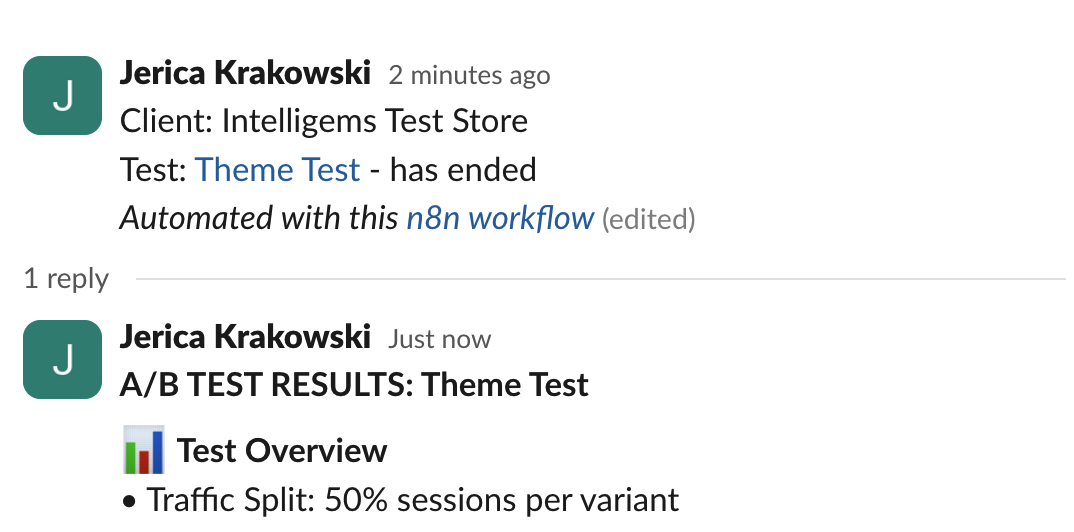
The workflow triggers when an Intelligems test ends, fetches the results, generates an AI-powered CRO analysis with strategic insights, and posts everything to a threaded Slack message where your team can discuss next steps.
{% hint style="danger" %}
AI can make mistakes. Always check it's work before sharing with a client.6
{% endhint %}
## Softwares Used
To build this automated reporting pipeline, you will need the following tools:
* [n8n](https://n8n.io/): The primary workflow automation platform used to connect APIs and schedule tasks.
* [Groq](https://console.groq.com/): A high-speed AI inference engine used to process test data and generate natural language reports.
* *Note: You can swap this for OpenAI or Anthropic if preferred, but this guide uses Groq for its free API tier*.
* [Slack](https://api.slack.com/apps): The final destination where the AI-generated health checks and reports will be posted.
## How to Create Your Final Test Results & Learning Report:
### Step 1: Get Your API Keys
#### **Groq API Key (Or your AI of Choice)**
* Go to [https://console.groq.com](https://console.groq.com/)
* Sign up for free (no credit card needed)
* Click "API Keys" on the top nav
* Click "Create API Key"
* Name the key & press submit
* Copy and save the key (starts with `gsk_`)
#### **Intelligems API Key(s)**
\[[How to get Intelligems API Key](https://docs.intelligems.io/developer-resources/external-api#getting-started)]
### Step 2: Create the Workflow in n8n
#### Node 1: Schedule Trigger
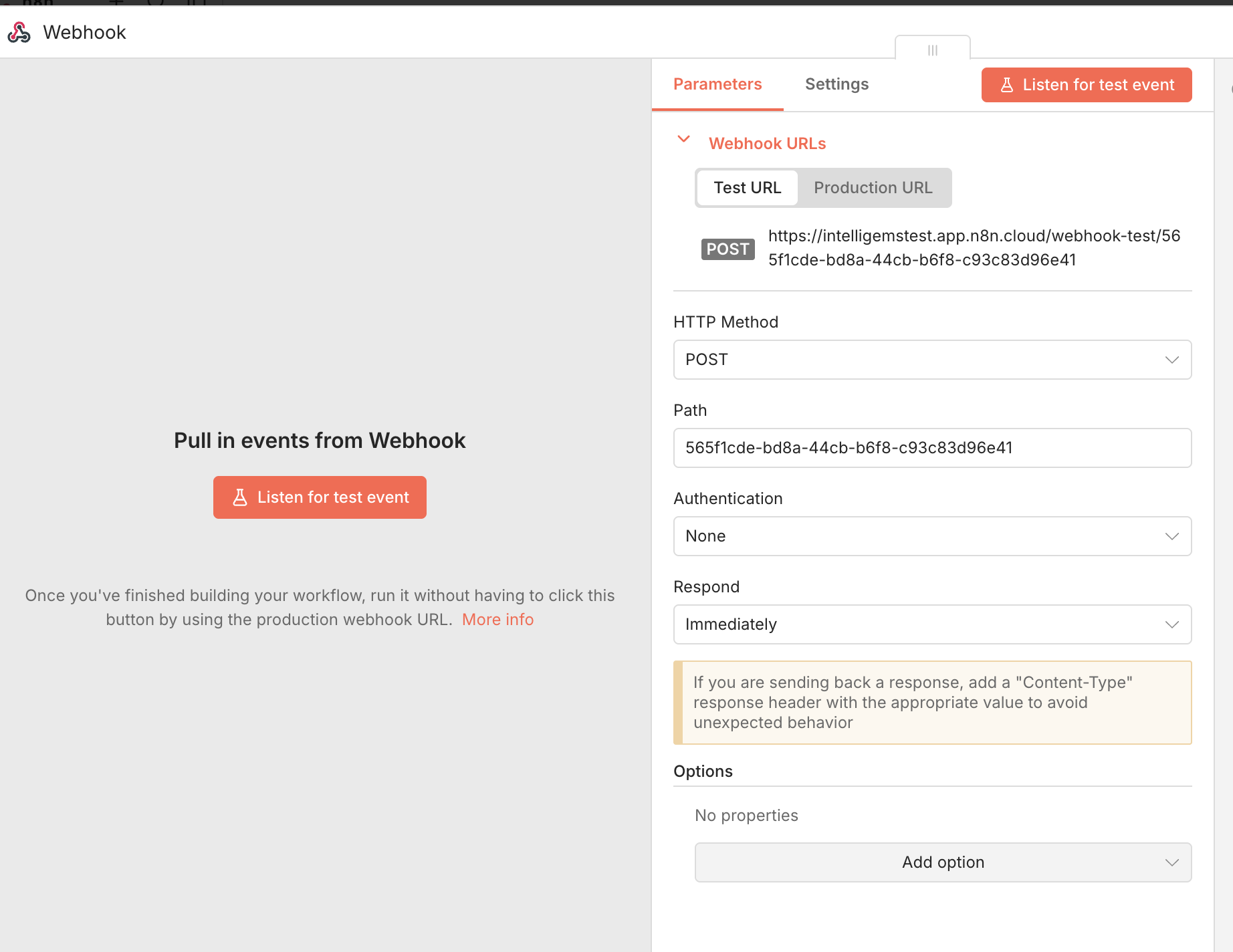
1. Click the **"+"** button to add a node
2. Search for **"On webhook Call"**
3. Set the "HTTP Method" to **"POST"**
4. Grab the Production URL
5. Back In **Intelligems > Settings > Webhooks**, create a webhook with the n8n production URL where the action type is **"end experience"**. If an agency, do this for all your client accounts.
#### Node 2: Return API Key to Use Based Upon Organization ID
1. Add **"Code"** node
2. Select **"Code in JavaScript"**
3. Select **"Run Once for All Items"**
4. Update the below code so that `org-id` maps to match the Intelligems organization IDs of your clients (you can find these in Intelligems under Settings > General > Organization Settings), the `name` value is display name for your clients, and the `api-key` value is the Intelligems API Key for those clients. Then paste this code into the Code section in n8n.
```
// API Key mapping - configure your organization IDs, API keys, and client display names
const API_KEY_MAP = {
'org-id': {
apiKey: 'api-key',
name: 'Client Name Here'
},
'org-id': {
apiKey: 'api-key',
name: 'Client Name Here'
},
// Add more organization mappings here
};
// Extract experience ID
const experienceId = $input.item.json.body?.experience?.id;
// Extract organization ID
const organizationId = $input.item.json.body?.experience?.organizationId;
// Get the configuration for this organization
const orgConfig = API_KEY_MAP[organizationId];
const apiKey = orgConfig?.apiKey;
const clientName = orgConfig?.clientName;
// Return as an array with a single object
return [
{
json: {
experienceId,
apiKey,
organizationId,
clientName
}
}
];
```
#### Node 3: Get Test Analytics Data
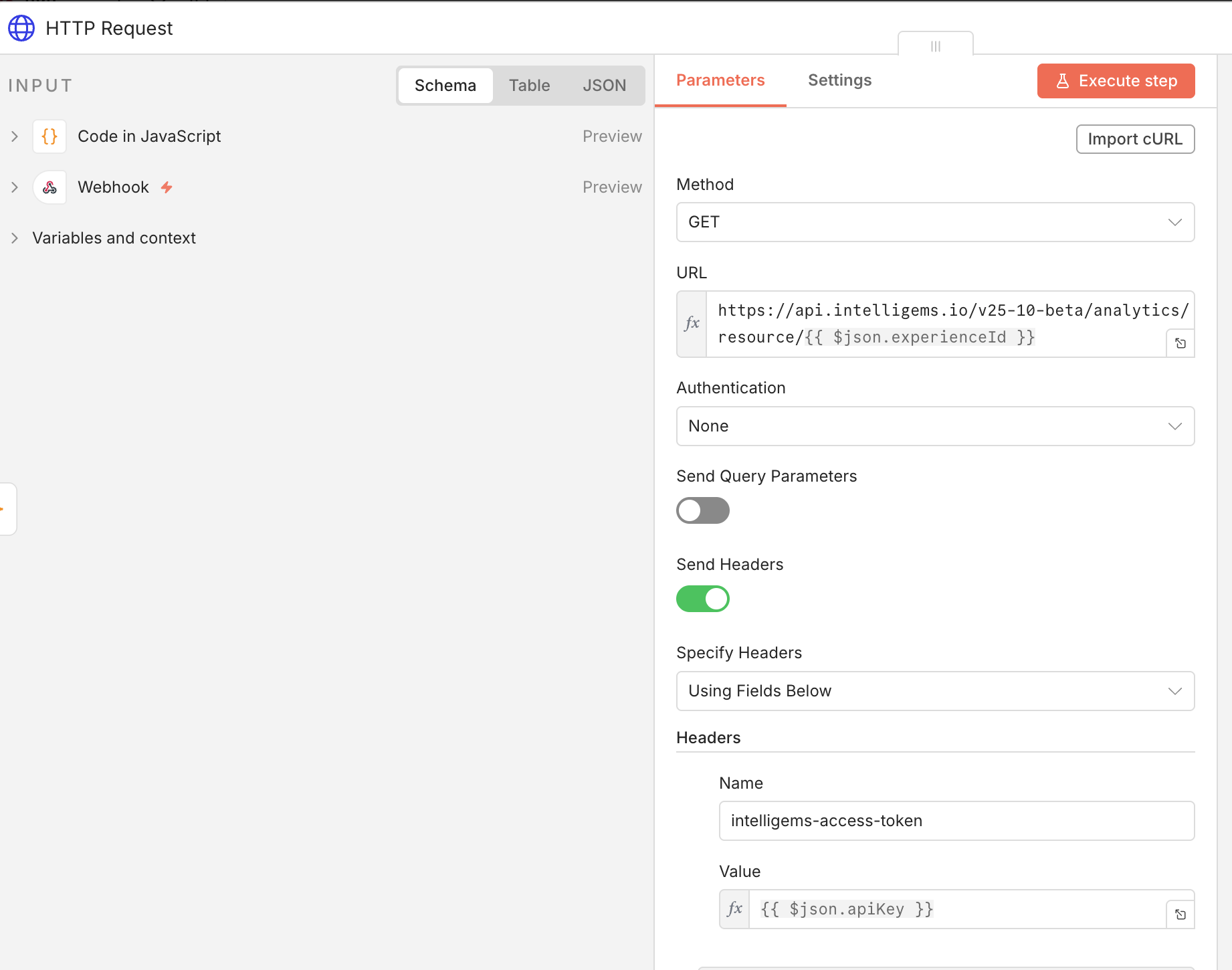
1. Add **"HTTP Request"** node
2. Configure:
* **Method**: GET
* **URL**: `https://api.intelligems.io/v25-10-beta/analytics/resource/{{ $json.experienceId }}`
* **Authentication**: None
* Enable **Send Headers**
* **Name**: `intelligems-access-token`
* **Value**: `{{ $json.apiKey }}`
#### Node 4: Send to AI Agent
1. Click the **"+"** button after your analytics HTTP Request node
2. Search for **"AI Agent"** or look under "AI Nodes"
3. Click **"AI Agent"**
**Configure the AI Agent:**
1. **Under "Chat Model"** section:
* Click "Select model"
* Choose **"Groq"** from the list (Or swap in your AI of choice)
* Click "Create New Credential"
* Paste your Groq API key (the one starting with `gsk_`)
* Select Model: **"llama-3.3-70b-versatile"** (best free model) or **"mixtral-8x7b-32768"**
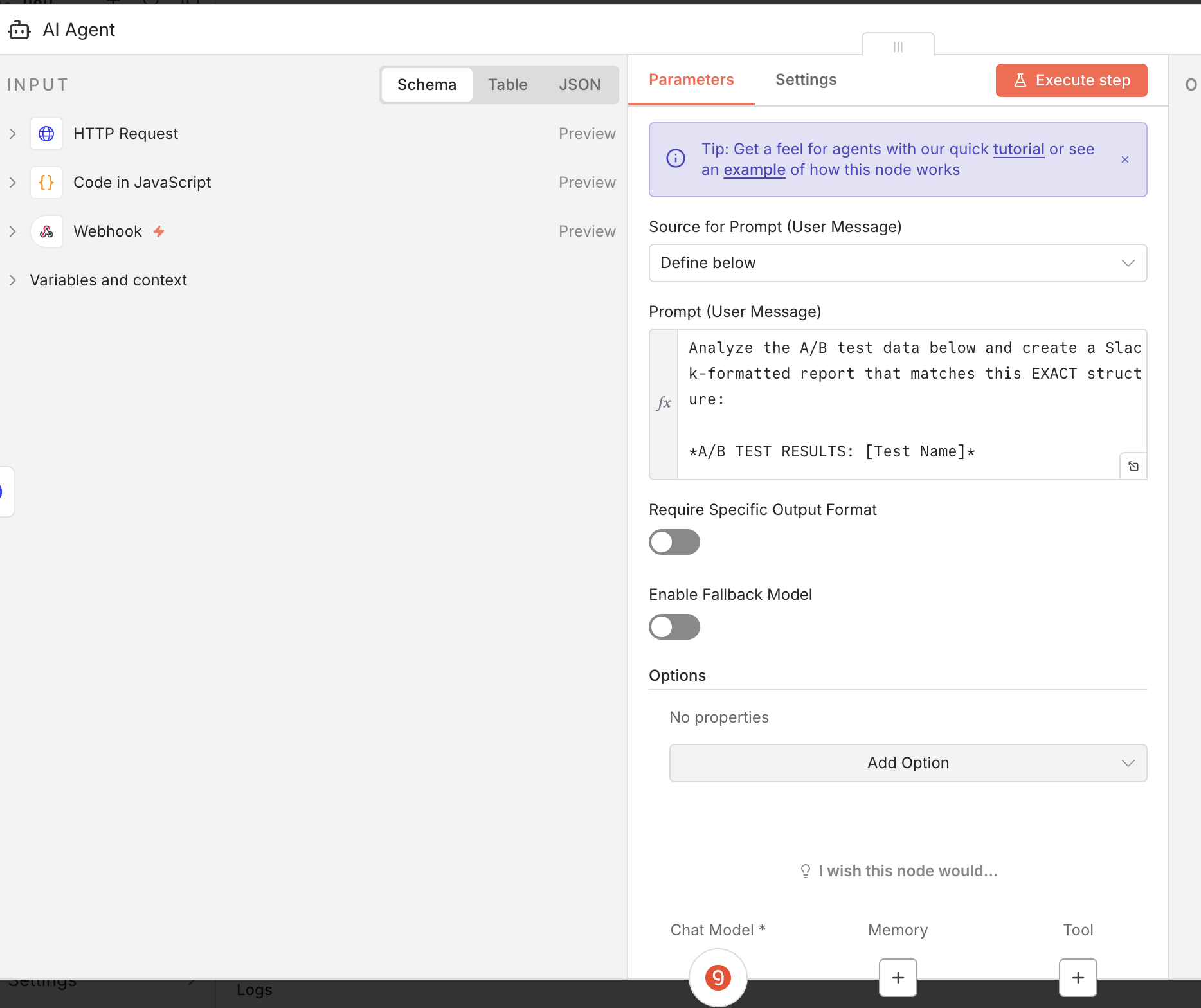
2. Back under the main AI Agent Screen:
* **Under "Source for Prompt"** set it to Define below
* **Under "Prompt"** section:
* In the text area, paste the below prompt. You can customize this prompt to meet your specific needs.
```
Analyze the A/B test data below and create a Slack-formatted report that matches this EXACT structure:
*A/B TEST RESULTS: [Test Name]*
📊 *Test Overview*
• Traffic Split: [X] sessions per variant
• Conversions: [Variant 1] ([X] orders) | [Variant 2] ([X] orders)
💰 *Performance Comparison*
For each variant, display results in this order:
*[Use actual variant name from data, e.g., $Off or %Off]:*
Revenue Per Visitor: [+/- X.XX%] (confidence: [XX%])
Conversion Rate: [+/- X.XX%] (confidence: [XX%])
Average Order Value: [+/- X.XX%] (confidence: [XX%])
Profit Per Visitor: [+/- X.XX%] (confidence: [XX%]) // include only if COGS data exists
Projected Monthly Impact: [+/- $X,XXX]
Sample: [X] orders from [X] sessions
🔍 *Key Insights*
*Signal Strength:* [Strong / Moderate / Weak / Insufficient]
- Explain what the data pattern shows
- Identify which metrics are aligned vs. conflicting
- Note any segments or patterns worth investigating
*DECISION FRAMEWORK*
*Sample Adequacy:* [Met / Not Met]
✓ Minimum 7-day runtime including weekend
✓ Minimum 350 conversions per variant
✓ Minimum 8,000 sessions per variant
✅ *Decision:* [IMPLEMENT / ITERATE / ABANDON / EXTEND]
IMPLEMENT if:
- Sample adequacy met
- Primary metric shows ≥4% improvement
- Confidence level ≥85%
- Downside risk is acceptable (lower bound of credible interval ≥-2%)
ABANDON if:
- Sample adequacy met
- Primary metric shows ≤-4% decline
- Confidence that variant is worse ≥85%
- Upside potential is negligible (upper bound ≤+2%)
ITERATE if:
- Sample adequacy met
- Mixed signals (one key metric up, another down)
- OR improvement exists but confidence <85% and test passed planned end date
- Recommendation: [specific iteration to test next]
EXTEND if:
- Sample adequacy not met
- OR confidence between 70-85% with meaningful trend (≥3% change)
- Estimated runway: [X] additional days needed
*Rationale:* [1-2 sentences explaining the decision]
🔗 *View Full Results*
https://app.intelligems.io/experiment/{{ $json.variations[0].experienceId }}
Formatting Rules
- Use one asterisks * for bold text (e.g., *Variant A*)
- Round percentages to 2 decimal places (e.g., +3.47%, -2.03%)
- Round confidence scores to whole numbers (e.g., 87%, 92%)
- Format revenue with commas, no decimals (e.g., +$8,450, -$3,200)
- Use proper em dashes (—) for breaks in text
- Keep spacing consistent
- For confidence, use the p2bc value: if p2bc = 0.87, display as "87%"
- Include emojis exactly as shown: 📊 💰 🔍 📋 ✅ 🔗
- Use bullet points with - symbol
- DO NOT include the word "text:" or any JSON formatting in your output
- Output only the formatted message content, no JSON wrapper
Decision Calculation Guidelines
Determining Confidence: Use p2bc (probability to beat control) directly as the confidence percentage
Estimating Extension Time:
- Calculate average daily session volume: total sessions ÷ days run
- Determine sessions needed for 8,000 minimum per variant
- For confidence building: if confidence is 70-75%, assume need 80% more data; if 75-85%, assume need 40% more data
- Convert to days and cap at 14 additional days maximum
- If >14 days needed, classify as ITERATE instead
Signal Strength Classification:
- Strong: confidence ≥85% and absolute change ≥4%
- Moderate: confidence 70-85% OR absolute change 3-4%
- Weak: confidence 50-70% OR absolute change 1-3%
- Insufficient: confidence <50% OR duration <7 days
Handling Multiple Variants:
- Report all variants separately
- In decision section, identify best-performing variant
- If multiple variants show promise, note this in rationale
- IMPORTANT: Use the actual variant names from the data (like "$Off", "%Off", "Variant A", etc.), do NOT use placeholder text like "[Variant Name]"
Test Name: {{ $json.experienceName }}
Input Data
{{ JSON.stringify($json, null, 2) }}
```
#### **Node 5: Send to Slack (Notification)**
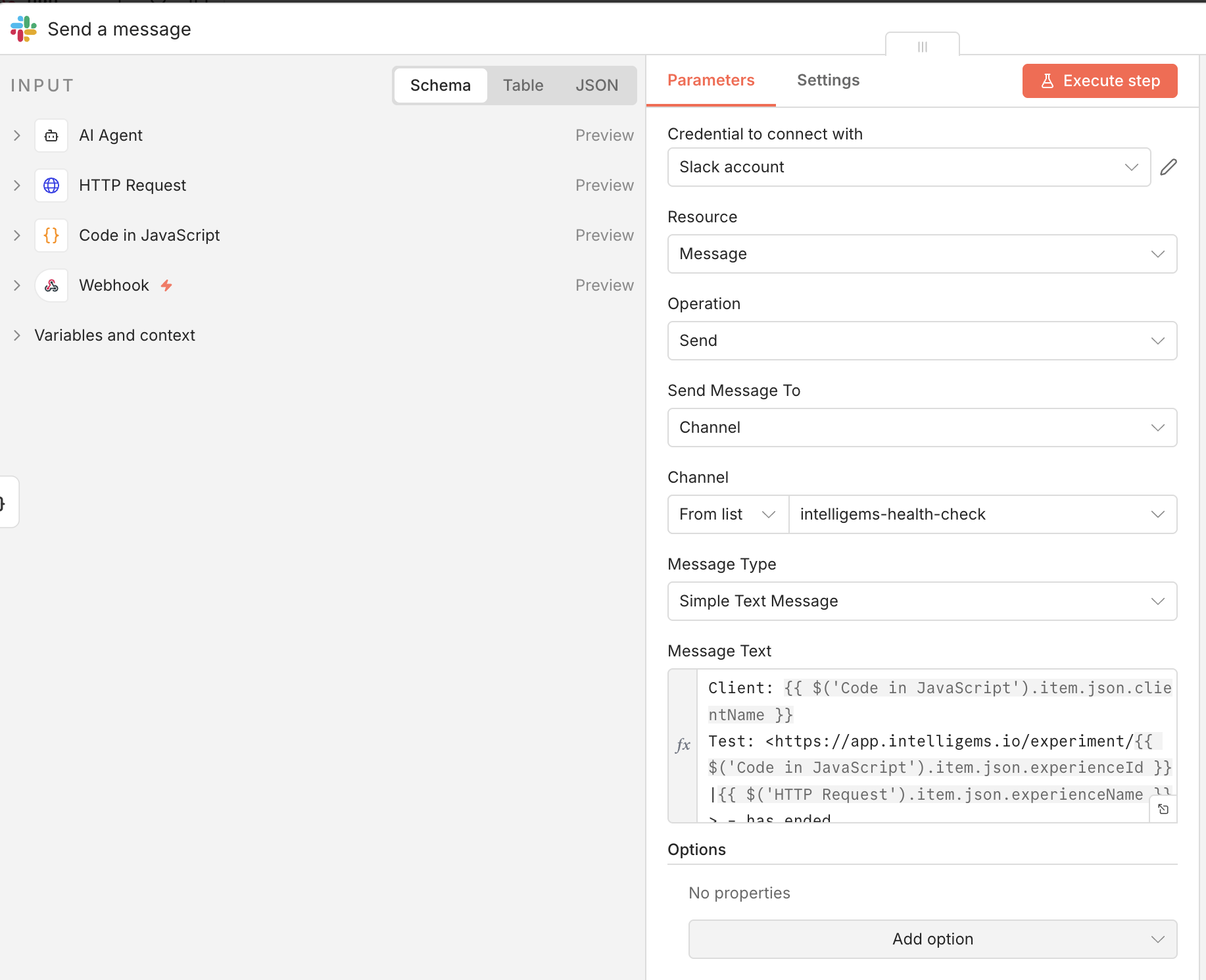
1. Add **"Slack"** node where the action is **"Send a message"**
2. **Authentication**:
* Click "Create New Credential"
* Click "Connect my account" and follow the prompts
3. **Channel/Use**:
* Under "Send Message To" configure where you want this slack message to appear
4. **Message**:
* in "Message Text" input:
```
Client: {{ $('Code in JavaScript').item.json.clientName }}
Test: - has ended
```
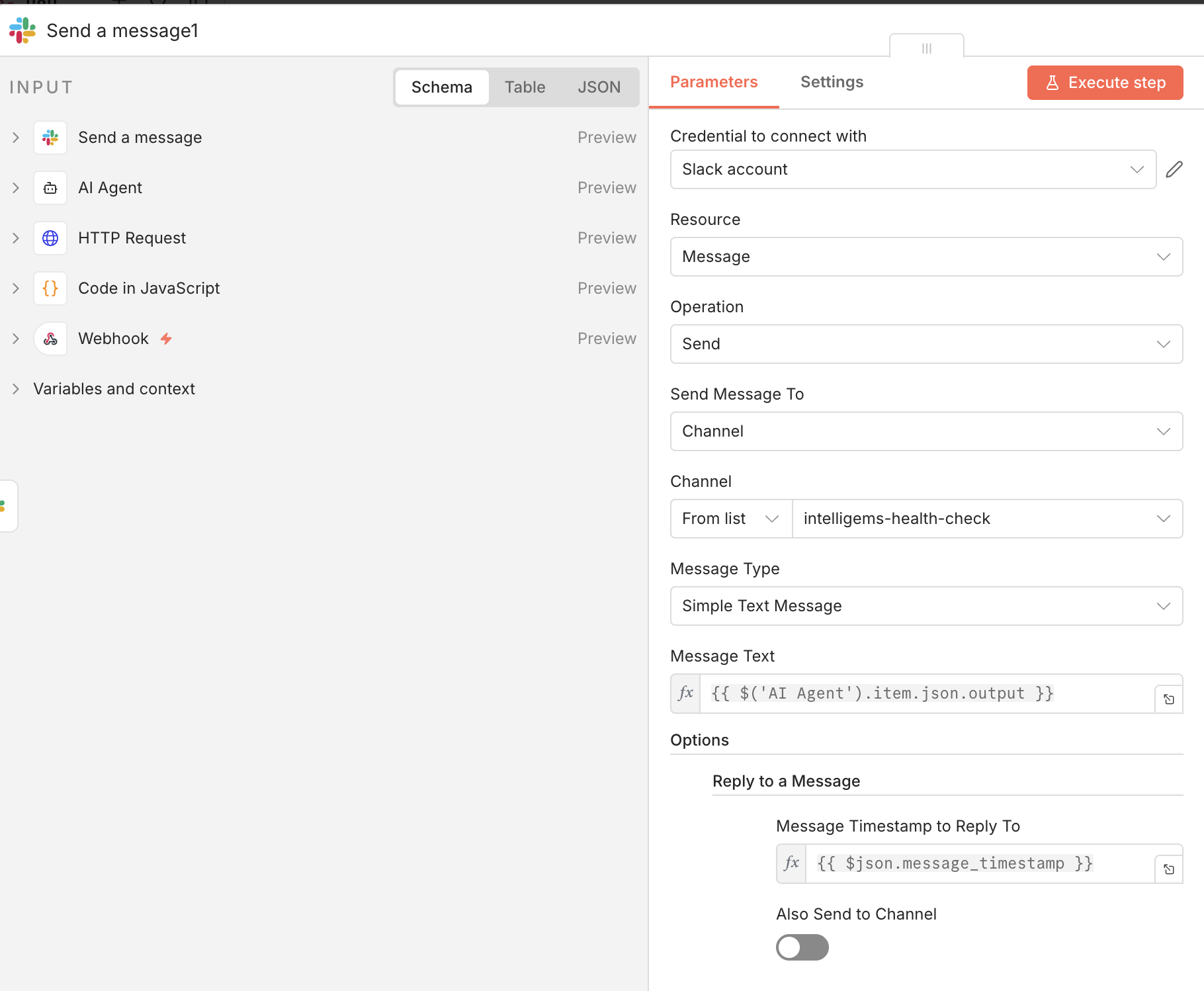
#### **Node 6: Send to Slack (Report)**
1. Add **"Slack"** node where the action is **"Send a message"**
2. Set the same channel as your 8th Node.
3. In "Message Text" input:
```
{{ $('AI Agent').item.json.output }}
*Slack Update for Client*
{{ $('AI Agent1').item.json.output }}
```
1. Under Options, add a "Reply to a message" option.
2. For "Message Timestamp to Reply To" input `{{ $json.message_timestamp }}`
### Step 3: Activate the Workflow
1. Once everything works, click **"publish"** at the top to make this workflow go live!
2. Your workflow will listen for tests that end in Intelligems, analyze them, and give you a notification in slack with the analysis!
---
# Agent Instructions
This documentation is published with GitBook. GitBook is the documentation platform designed so that both humans and AI agents can read, navigate, and reason over technical content effectively. Learn more at gitbook.com.
## Querying This Documentation
If you need additional information that is not directly available in this page, you can query the documentation by asking a question.
Perform an HTTP GET request on the following URL with the `ask` and `goal` query parameters:
```
GET https://docs.intelligems.io/developer-resources/external-api/automations-and-guides/automated-final-test-results-and-learnings-report.md?ask=&goal=
```
`ask` is the immediate question: it should be specific, self-contained, and written in natural language.
`goal` is what the user is ultimately trying to achieve, the reason they need the answer. Sharing it helps GitBook give you a better, more relevant answer. A goal is most helpful when it describes the outcome the user wants rather than restating the question. For example, with `ask=how do I create an API token`, a goal like `automate deployments from our CI pipeline` lets GitBook tailor the answer to that use case.
The response will contain a direct answer to the question and relevant excerpts and sources from the documentation.
Use this mechanism when the answer is not explicitly present in the current page, you need clarification or additional context, or you want to retrieve related documentation sections.