> For the complete documentation index, see [llms.txt](https://docs.intelligems.io/llms.txt). Markdown versions of documentation pages are available by appending `.md` to page URLs; this page is available as [Markdown](https://docs.intelligems.io/general-features/scheduling-personalizations.md).
# Scheduling an Experience
## **Scheduling** Experience **Overview**
The **Scheduling** Experience feature allows you to control *when* specific modifications will appear on your site by setting start and end times. This makes it easy to automate updates, ensuring that changes go live exactly when you want and stop at the right time. Whether it's a promotional banner for a flash sale or a seasonal announcement, scheduling makes it easy to automate time-sensitive experiences without having to manually turn them on and off. Scheduling works on both [tests and personalizations](/getting-started/tests-vs.-personalizations.md).
## **Why Would I Need to Use Scheduling for** Experiences**?**
Scheduling is essential for making sure your Experiences are displayed at the right moment without requiring constant oversight. This feature allows you to time your modifications to align with key business events and user behavior patterns. For example:
* **Launching Timed Promotions:** Automatically show a discount banner during a flash sale, built as a [Content Experience](/content-experiences/content-experiences-overview.md) or a [Merchandising Experience](/merchandising-experiences/offer-modifications.md).
* [Content Experience QA Checklist](https://docs.intelligems.io/content-experiences/content-test-qa-checklist)
* [Merchandising Experience QA Checklist](https://docs.intelligems.io/merchandising-experiences/offer-test-qa-checklist)
* **Managing Seasonal Campaigns:** Set up a special message for a holiday campaign, so it starts and stops exactly as needed.
* **Future Planning:** Schedule Experiences to launch new content or variations at a future date, so you can "set it and forget it."
## **How to Set Up a Schedule**
You can choose to set a schedule **when creating a new Experience** or add a schedule to **an existing Experience.**
1. **Where to Find Scheduling:**
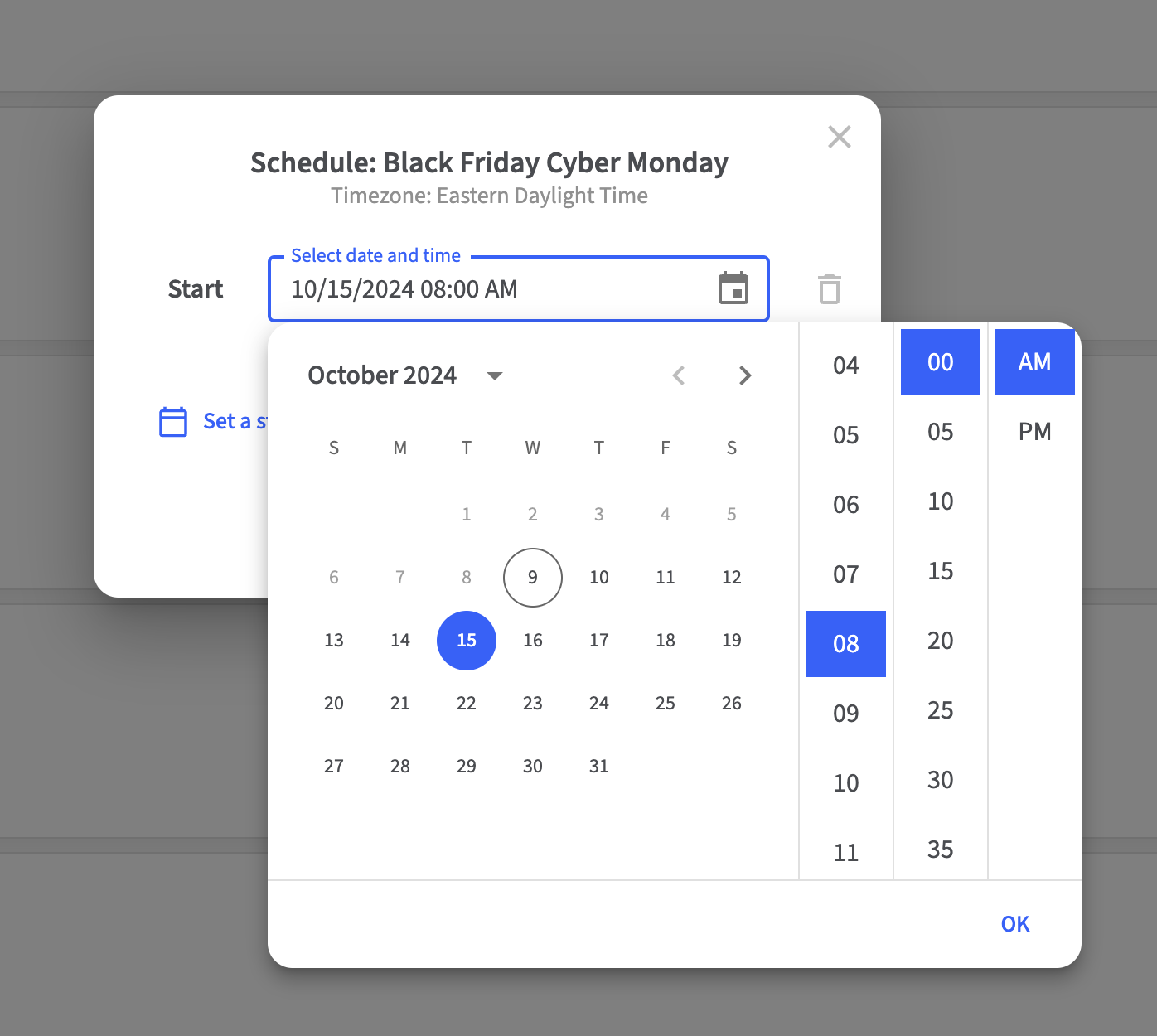
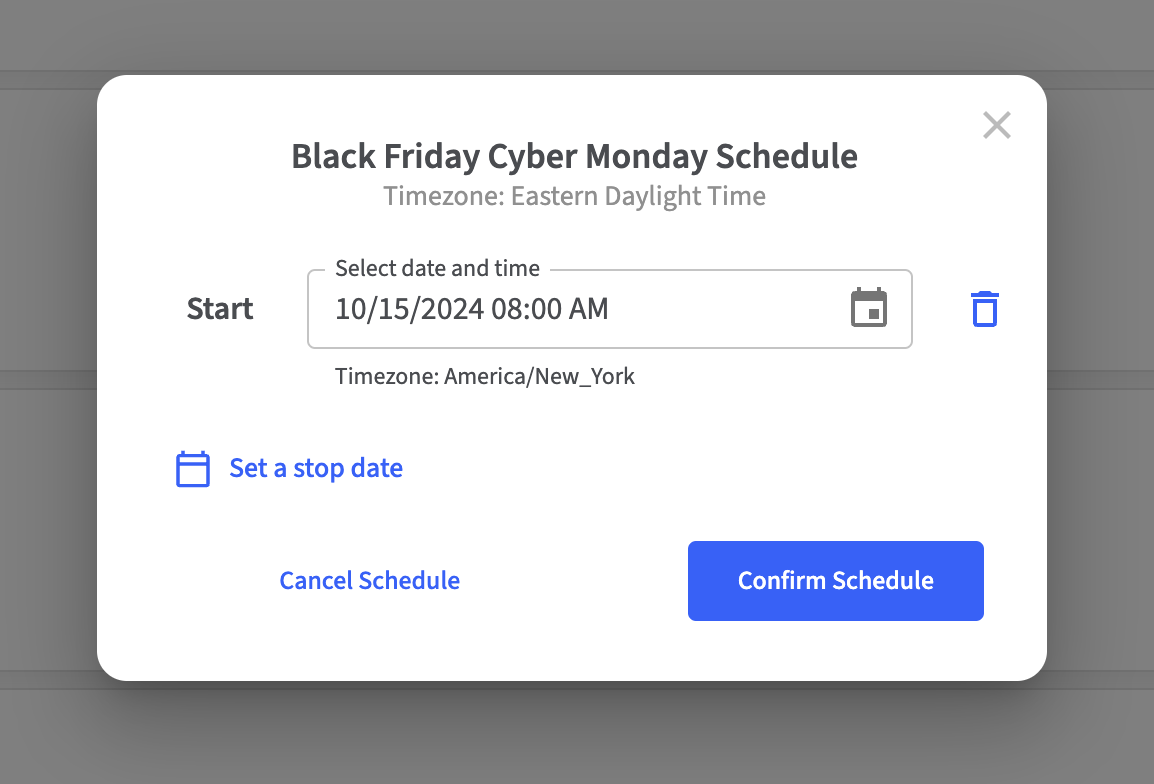
* **Scheduling for New Experience:** After you save your Experience, go to the header and select the **down arrow** next to **Activate**. From the dropdown menu, select **Schedule**. This will open the schedule dialogue where you can define the start and end times for your Experience.
* **Scheduling for Existing Experience:** In your personalizations list, click the **three-dot menu** on the right of a Experience and select **Schedule Experience**.
2. **Set Up Timing:**
* **Start Date & Time**: Set the exact date and time when your Experience should begin displaying (e.g., October 15th at 8:00 AM).
* **End Date & Time (Optional)**: If your Experience should only run for a limited period, set an end date and time. Leaving this field blank means the Experience will run indefinitely until you manually stop it.
3. **Review and Confirm:**
* Use the **Preview** feature to check that the Experience appears as expected.
## **Example Use Cases**
* **Ongoing Variations:** Use scheduling to launch new variants for long-term testing without setting an expiration date. Give it long enough to reach [statistical significance](https://docs.intelligems.io/analytics/overview/experiment-analytics/statistical-significance) before you read the result.
* **Seasonal Promotions:** Set a start date for a holiday campaign and let it run indefinitely until you want to turn it off manually.
* **Ongoing Variations:** Use scheduling to launch new variants for long-term testing without setting an expiration date.
---
# Agent Instructions
This documentation is published with GitBook. GitBook is the documentation platform designed so that both humans and AI agents can read, navigate, and reason over technical content effectively. Learn more at gitbook.com.
## Querying This Documentation
If you need additional information that is not directly available in this page, you can query the documentation by asking a question.
Perform an HTTP GET request on the following URL with the `ask` and `goal` query parameters:
```
GET https://docs.intelligems.io/general-features/scheduling-personalizations.md?ask=&goal=
```
`ask` is the immediate question: it should be specific, self-contained, and written in natural language.
`goal` is what the user is ultimately trying to achieve, the reason they need the answer. Sharing it helps GitBook give you a better, more relevant answer. A goal is most helpful when it describes the outcome the user wants rather than restating the question. For example, with `ask=how do I create an API token`, a goal like `automate deployments from our CI pipeline` lets GitBook tailor the answer to that use case.
The response will contain a direct answer to the question and relevant excerpts and sources from the documentation.
Use this mechanism when the answer is not explicitly present in the current page, you need clarification or additional context, or you want to retrieve related documentation sections.