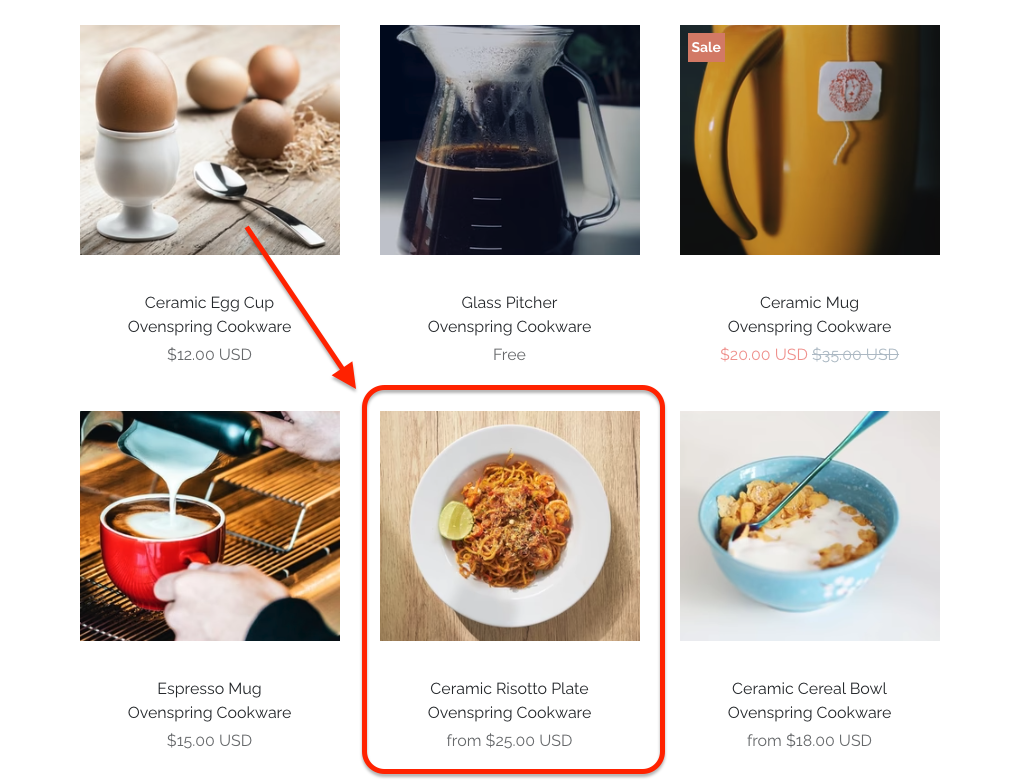
> For the complete documentation index, see [llms.txt](https://docs.intelligems.io/llms.txt). Markdown versions of documentation pages are available by appending `.md` to page URLs; this page is available as [Markdown](https://docs.intelligems.io/general-features/targeting/product-targeting/how-to-set-up-collection-card-product-targeting.md).
# How to Set Up Collection Card Product Targeting
By default, product card targeting only works on collection pages. To enable product card targeting on **search results**, **home pages**, and **custom pages**, you need to add a small script to your product card templates.
### Step 1: Locate Your Product Card Template
These are the cards that display each product in your collection.
Common locations for product card templates in Shopify themes:
* `snippets/card-product.liquid`
* `snippets/product-card.liquid`
* `snippets/product-grid-item.liquid`
* `sections/featured-product.liquid` (for featured product sections)
#### How to find it
1. In your Shopify admin, go to **Online Store → Themes**
2. Click **Actions → Edit code** on your active theme
3. Look in the `snippets/` or `sections/` folder for files with "product" or "card" in the name
### Step 2: Add the Product Data Script and Update Variable Names
Copy and paste this script at the beginning of your product card template, right after the opening `{%- if product -%}` or `{%- if card_product -%}` line:
```liquid
```
#### Update the variable names to match your template:
{% hint style="warning" %}
**Important:** The variable name must match what your template uses.
{% endhint %}
| Template Variable | What to Replace |
| ---------------------------- | ------------------------------------------------- |
| `{{ product }}` | Keep script as-is |
| `{{ card_product }}` | Replace all `product` with `card_product` |
| `{{ featured_product }}` | Replace all `product` with `featured_product` |
| `{{ your_custom_variable }}` | Replace all `product` with `your_custom_variable` |
Example for `card_product` variable:
```liquid
```
{% hint style="info" %}
**How to check:** Look at the top of your template file for lines like:
* `{%- if product -%}` → Use `product`
* `{%- if card_product -%}` → Use `card_product`
{% endhint %}
### Step 3: Verify Installation
1. Navigate to a search results page or home page with product cards
2. Open your browser's developer console (press `F12` or `Cmd+Option+I`)
3. Type: `console.log(window.igProductData)`
4. Press Enter
**Expected result:** You should see an object with product IDs as keys:
```json
{
"1234567890": { "productId": 1234567890, "handle": "product-1", "tags": [...] },
"9876543210": { "productId": 9876543210, "handle": "product-2", "tags": [...] }
}
```
---
# Agent Instructions
This documentation is published with GitBook. GitBook is the documentation platform designed so that both humans and AI agents can read, navigate, and reason over technical content effectively. Learn more at gitbook.com.
## Querying This Documentation
If you need additional information that is not directly available in this page, you can query the documentation by asking a question.
Perform an HTTP GET request on the following URL with the `ask` and `goal` query parameters:
```
GET https://docs.intelligems.io/general-features/targeting/product-targeting/how-to-set-up-collection-card-product-targeting.md?ask=&goal=
```
`ask` is the immediate question: it should be specific, self-contained, and written in natural language.
`goal` is what the user is ultimately trying to achieve, the reason they need the answer. Sharing it helps GitBook give you a better, more relevant answer. A goal is most helpful when it describes the outcome the user wants rather than restating the question. For example, with `ask=how do I create an API token`, a goal like `automate deployments from our CI pipeline` lets GitBook tailor the answer to that use case.
The response will contain a direct answer to the question and relevant excerpts and sources from the documentation.
Use this mechanism when the answer is not explicitly present in the current page, you need clarification or additional context, or you want to retrieve related documentation sections.