> For the complete documentation index, see [llms.txt](https://docs.intelligems.io/llms.txt). Markdown versions of documentation pages are available by appending `.md` to page URLs; this page is available as [Markdown](https://docs.intelligems.io/getting-started/adding-intelligems-script-to-your-theme/updating-the-intelligems-script.md).
# Updating the Intelligems Script
{% hint style="success" %}
The **CommonJS script will remain supported for current features.** However, **new features will** **only be available with the ESM script**, so we recommend updating your Script code as soon as you are able to. Additionally, the ESM script improves plugin performance, making it faster!
{% endhint %}
## Context
Historically, Intelligems utilized a version of its script known as the CommonJS script. In December 2024, an update was released, transitioning to a new and improved version called the ESM script.
Here’s how the scripts differ:
#### Pre-December 9, 2024 (CommonJS Script)
The final line of the script looks like this (with `abcdefghijk` replaced by your unique customer ID):
```html
```
#### Post-December 9, 2024 (ESM Script)
The updated script uses the following format (with `abcdefghijk` replaced by your unique customer ID):
```html
```
Key differences include:
1. **`type="module"`** – the script is now a JavaScript module.
2. **`esm`** – the directory structure reflects the new ESM format.
3. **`bundle`** – the updated structure for improved performance.
{% hint style="warning" %}
**Copy the whole block from Settings rather than swapping this line.** The lines above the tag have changed since December 2024 too, and a script that's missing them leaves your product and collection pages without the data we need to price them.
{% endhint %}
## Required Changes
You can check your installation on the top right of settings page.
If you're script is out of date you can update starting from right here:
1. Click the button in that block that says "Copy". This will copy your unique Intelligems script to your clipboard.
2. Now head over to your Shopify account, and replace your current Intelligems Script with your new one. The script should be included as a source in the `` of each of these files:
1. theme.liquid
2. any other theme.\*.liquid files (e.g., theme.gempages.liquid if you have this file)
3. checkout.liquid (if you have this file; most themes do not)
Here is a video walking through those steps:
{% embed url="" %}
{% hint style="info" %}
**The app embed means you don't do this again.** Shopify injects the current script for you, so script updates land without a theme deploy and you stay on the latest version. Our newer performance work needs the embed too.
{% endhint %}
If your theme uses `importmap`, the ESM script has to sit below it. This [page](https://docs.intelligems.io/getting-started/moving-intelligems-script-location-below-importmap) has the fix.
#### **Post-Purchase Page for Theme Change Experiences (Legacy Checkout Only)**
**Note:** *This step only applies if your store still has access to the legacy Shopify checkout (`checkout.liquid`). Most stores have been migrated to Checkout Extensibility and will not see this section in their Shopify admin. If you don't see a "Post-purchase page" section under Settings → Checkout, you can skip this step—the preview bar will be hidden automatically.*
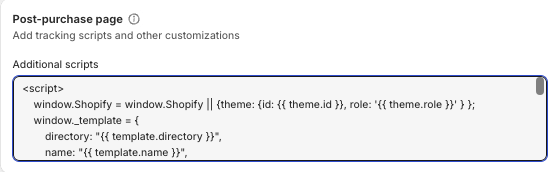
If you are planning to run a theme change experience and still have access to the Additional Scripts section for the Post-purchase page, you should update your script there as well. This will hide the theme preview bar from showing up on your thank you page. You can get to the Additional Scripts section pictured below by going to Settings -> Checkout -> Scroll about halfway down to "Post-purchase page".
---
# Agent Instructions
This documentation is published with GitBook. GitBook is the documentation platform designed so that both humans and AI agents can read, navigate, and reason over technical content effectively. Learn more at gitbook.com.
## Querying This Documentation
If you need additional information that is not directly available in this page, you can query the documentation by asking a question.
Perform an HTTP GET request on the following URL with the `ask` and `goal` query parameters:
```
GET https://docs.intelligems.io/getting-started/adding-intelligems-script-to-your-theme/updating-the-intelligems-script.md?ask=&goal=
```
`ask` is the immediate question: it should be specific, self-contained, and written in natural language.
`goal` is what the user is ultimately trying to achieve, the reason they need the answer. Sharing it helps GitBook give you a better, more relevant answer. A goal is most helpful when it describes the outcome the user wants rather than restating the question. For example, with `ask=how do I create an API token`, a goal like `automate deployments from our CI pipeline` lets GitBook tailor the answer to that use case.
The response will contain a direct answer to the question and relevant excerpts and sources from the documentation.
Use this mechanism when the answer is not explicitly present in the current page, you need clarification or additional context, or you want to retrieve related documentation sections.