# Make More $ per Order with Volume Discounts
[Why Run This Test](#why-this-works) | [VIDEO: How to Run This Test](#how-to-build-this-test-in-intelligems) | [Step-by-Step Guide](#step-1-identify-the-right-products)
## What's a Volume Test
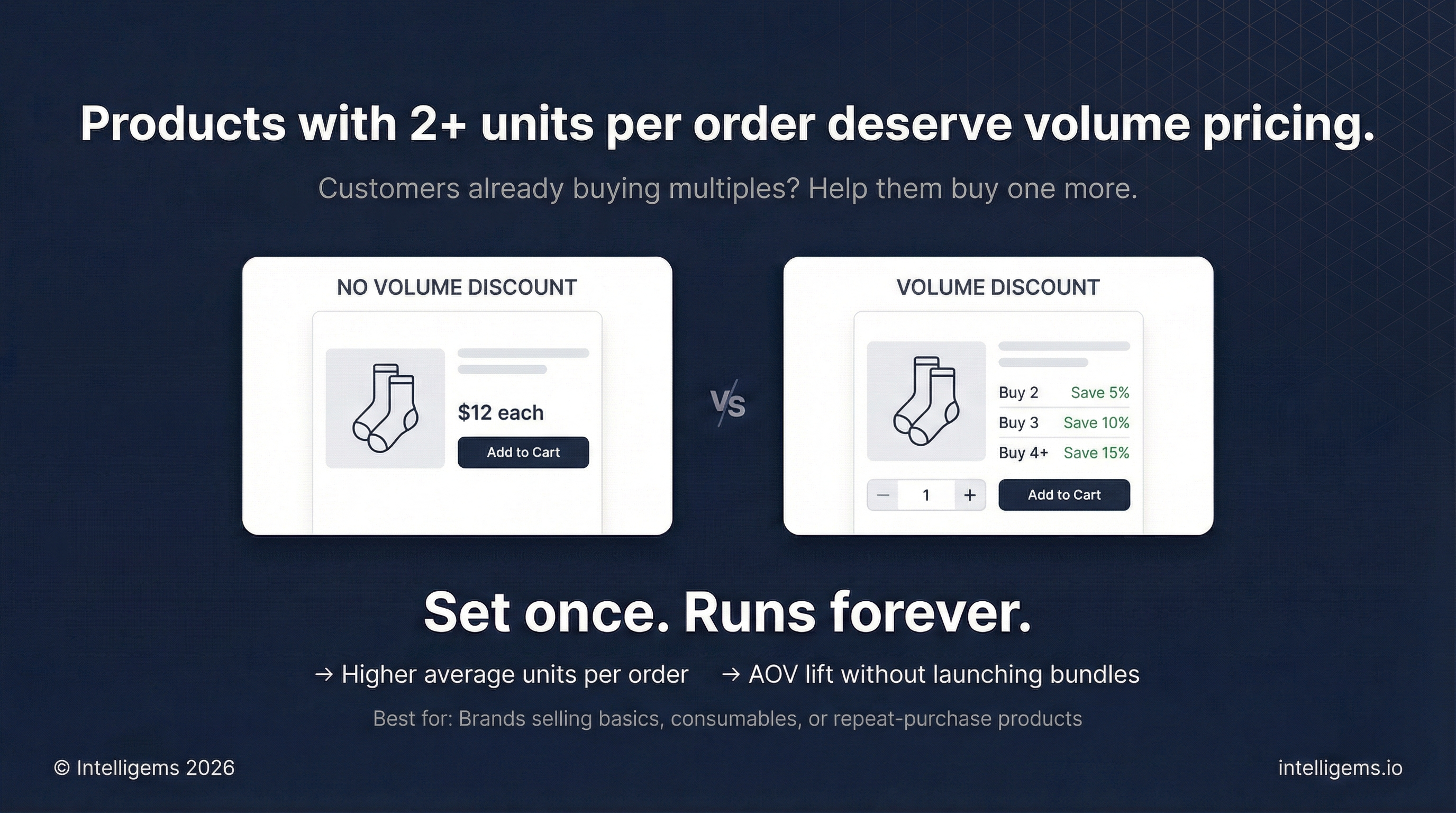
This use-case shows how to create a volume discount for products that are commonly purchased in more than one unit.
If a product or product group already averages 2+ units per transaction, volume discounts help nudge shoppers to buy additional units by clearly showing savings.
### Examples:
* Socks, underwear, tees
* Consumables and replenishable items
* Anything that people buy multiple units of
## Why This Works
Based on your store's data, shoppers are already buying multiple units on average per order. Clearly framing unit options on PDPs and additional messaging throughout your store along with obvious savings, reduces friction and helps shoppers make a faster decision. All incremental units added to cart improve your AOV, revenue per visitor, and reduce your average shipping cost per unit.
{% hint style="success" %}
Customers with 2+ units per order that launch Volume Discounts using our Quantity Buttons saw improvements in AOV, revenue per visitor, and items per order.
{% endhint %}
## How to Build This Test in Intelligems
{% embed url="" %}
### **Step 1: Identify the right products**
Look for products or collections where:
* Average units per transaction ≥ 2
* Customers frequently reorder
* Margins allow for small per-unit discounts
You can apply Volume Discounts to:
* A single product
* A set of related products
* A full collection
{% hint style="info" %}
To find this report in Shopify, go to Analytics > Reports > Search for "Items bought together"
{% endhint %}
### Step 2: Start with a test
If you want to validate this change, let's start with a test. If you want to skip the test and implement directly, create a [Personalization](https://docs.intelligems.io/offer-personalizations/offers-library/how-to-set-up-a-buy-more-save-more-quantity-discount).
### How to Set up the test
1. Go to **Tests →** Create Test
2. Select **Offer** as the test type
3. Set your Control group - no changes, no volume discount
4. Rename your test variant (New Group 1) to Volume Discount Offer
5. In the **Modifications** tab, select your test group and click **+ Add offer**
6. Choose **Quantity Discount** then click Configure offer
7. **Select products** or collections with multi-unit behavior
{% hint style="info" %}
If you require the same-item to be purchased for discount to apply, check the box on **Item Mix**.
{% endhint %}
8. Create your offer tiers. Example:
1. Buy 2, Save 5%
2. Buy 3, Save 10%
3. Buy 4, Save 15%
9. On the right side under **Add components**, select **Quantity Buttons**
10. Click **Continue to Component**
{% hint style="info" %}
Quantity Button components are automatically installed and available on your theme.
When the Test or Personalization goes live, the Quantity Buttons will replace the variant and quantity selectors on your PDPs. [Learn more](https://docs.intelligems.io/offer-personalizations/offers-integrating-widgets/quantity-buttons).
{% endhint %}
11. Configure your **Quantity Buttons**
12. **Preview** the styling, messaging, buttons etc. on the right side
13. If everything looks good, click **Confirm Changes**
14. Click **Save**
15. Choose your Audience in the **Targeting** tab. It's default to all visitors.
16. **Preview** your test on mobile and desktop. If you're having any issues with the Quantity Buttons, email us.
17. **Start** your test
### Step 3: Review results
After your test reaches statistical significance (typically 2-4 weeks depending on traffic), review the **Results** tab and roll out the winner as a **Personalization**.
#### How To Measure Impact
* Average units per order lift
* AOV lift
* Revenue per visitor lift
* Profit per visitor lift
{% hint style="info" %}
Use the AI summary or Chat about your results to get deeper with your results
{% endhint %}
#### Roll out the winning offer
If the volume discount wins:
1. End the test
2. **Roll out** the winner as a **Personalization** with the Roll out wizard
3. Leave targeting unchanged
\
🚀 Launch your next test!
### Want Help With Setup?
Our team can walk you through any of these tests and launch it while we're on the call. [Book a strategy call](https://meetings.hubspot.com/rohandang/intelligems-success-team)