> For the complete documentation index, see [llms.txt](https://docs.intelligems.io/llms.txt). Markdown versions of documentation pages are available by appending `.md` to page URLs; this page is available as [Markdown](https://docs.intelligems.io/merchandising-experiences/offers-integrating-widgets/quantity-buttons.md).
# Quantity Buttons
Add a fully customizable Quantity Buttons component to a Personalization or Test.
## Overview
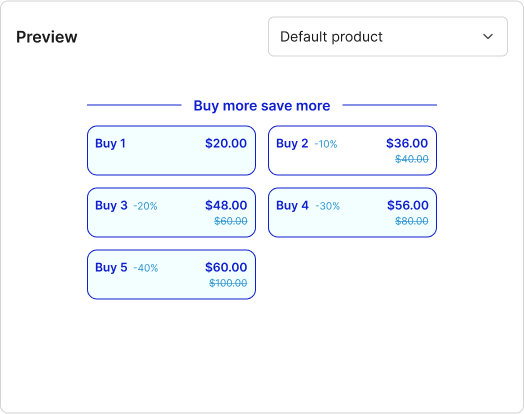
Add quantity buttons to your product pages so customers can select multiple units and unlock tiered discounts without extra friction. The buttons highlight savings to encourage larger purchases and drive higher average order values.
{% hint style="warning" icon="traffic-light-go" %}
**Before you start:**
* Quantity Buttons are automatically installed via the Intelligems script in most cases. If you are not seeing them when you preview your Offer on an eligible product, please see [below](#integrating-the-quantity-buttons) for help.
* Quantity Buttons are only available on Quantity & Threshold Discounts that have at least one product selected.
* To set up a Price Test that is compatible with Quantity Buttons, [follow these steps](https://docs.intelligems.io/offer-experiences/how-to-set-up-a-price-test-with-quantity-buttons).
{% endhint %}
## Configuration
### Basic Setup
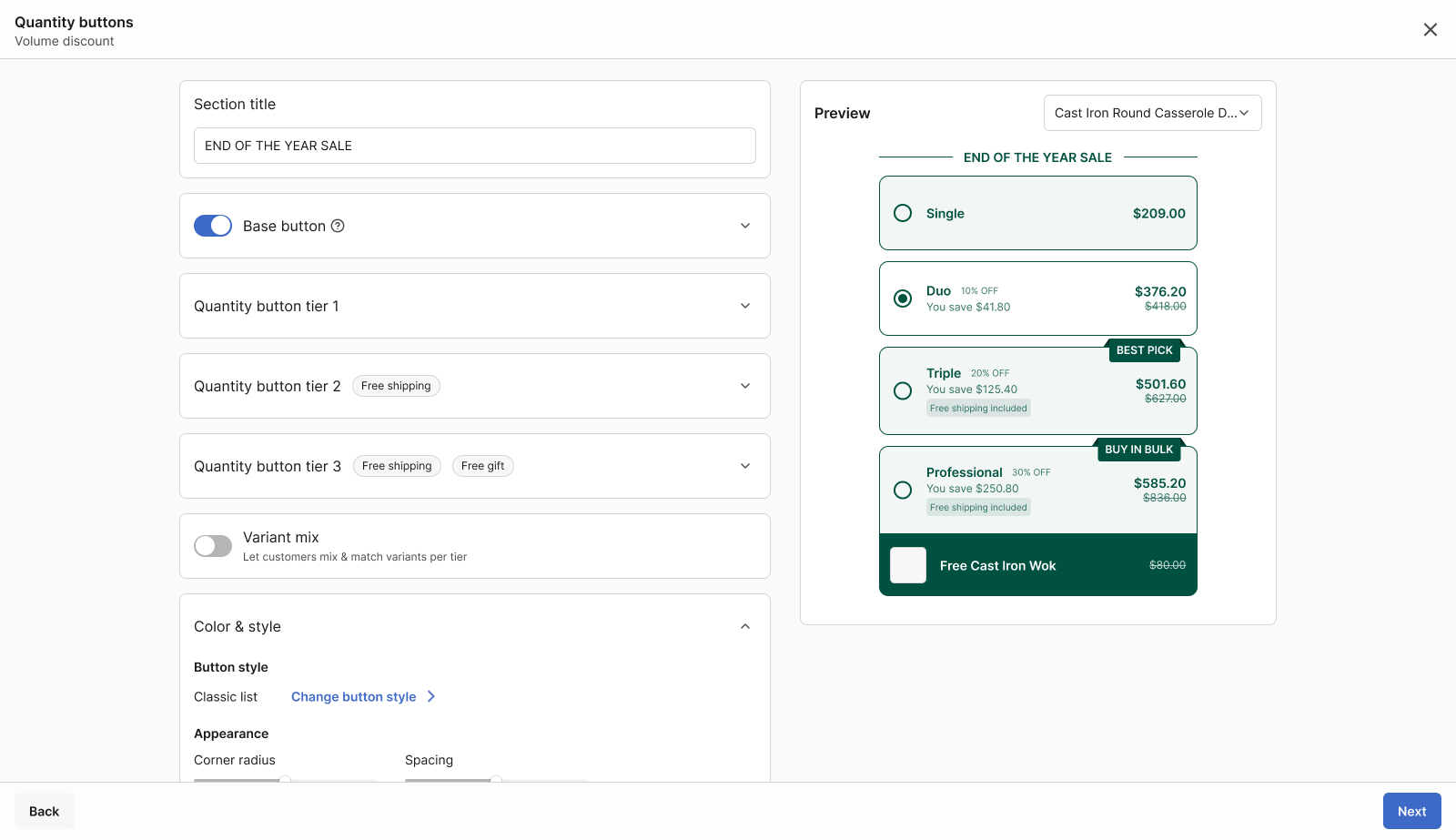
* **Section title**: Header text (e.g., "END OF THE YEAR SALE").
* **Base button**: Enable single-item option.
* **Button title:** The main text displayed on each quantity button — typically used to highlight unit count.
* **Subtitle:** Secondary text displayed below the title on each button.
* **Label**: A small tag displayed on a button to call out custom text.
* **Badge:** An overlay badge on the button, typically used to highlight a recommended or popular tier.
* **Default tier selection:** The tier pre-selected when a customer lands on the page.
* **Compare at price:** Enable this option to display compare price. This field will display the compare-at price that is in Shopify for the product being viewed adjusted for the selected quantity.
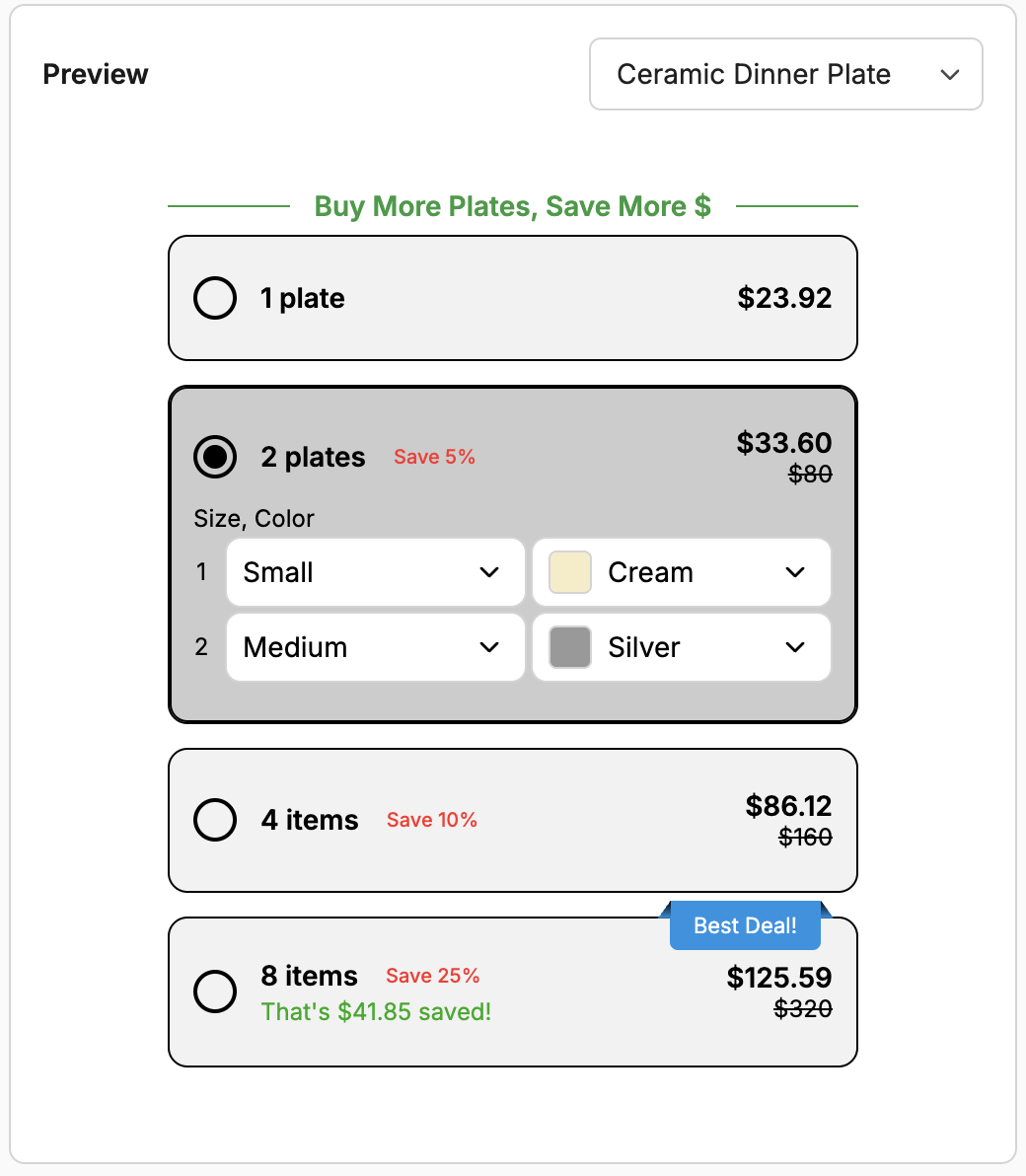
* **Show prices per item:** Displays the per-unit price within each button to make tiered pricing easy to compare.
* **Free gift display**: Include free gift information on qualifying tiers.
* **Free shipping badge**: Includ free shipping information on qualifying tiers.
* **Variant mix:** Let customers mix & match variants per tier.
### Dynamic Variables
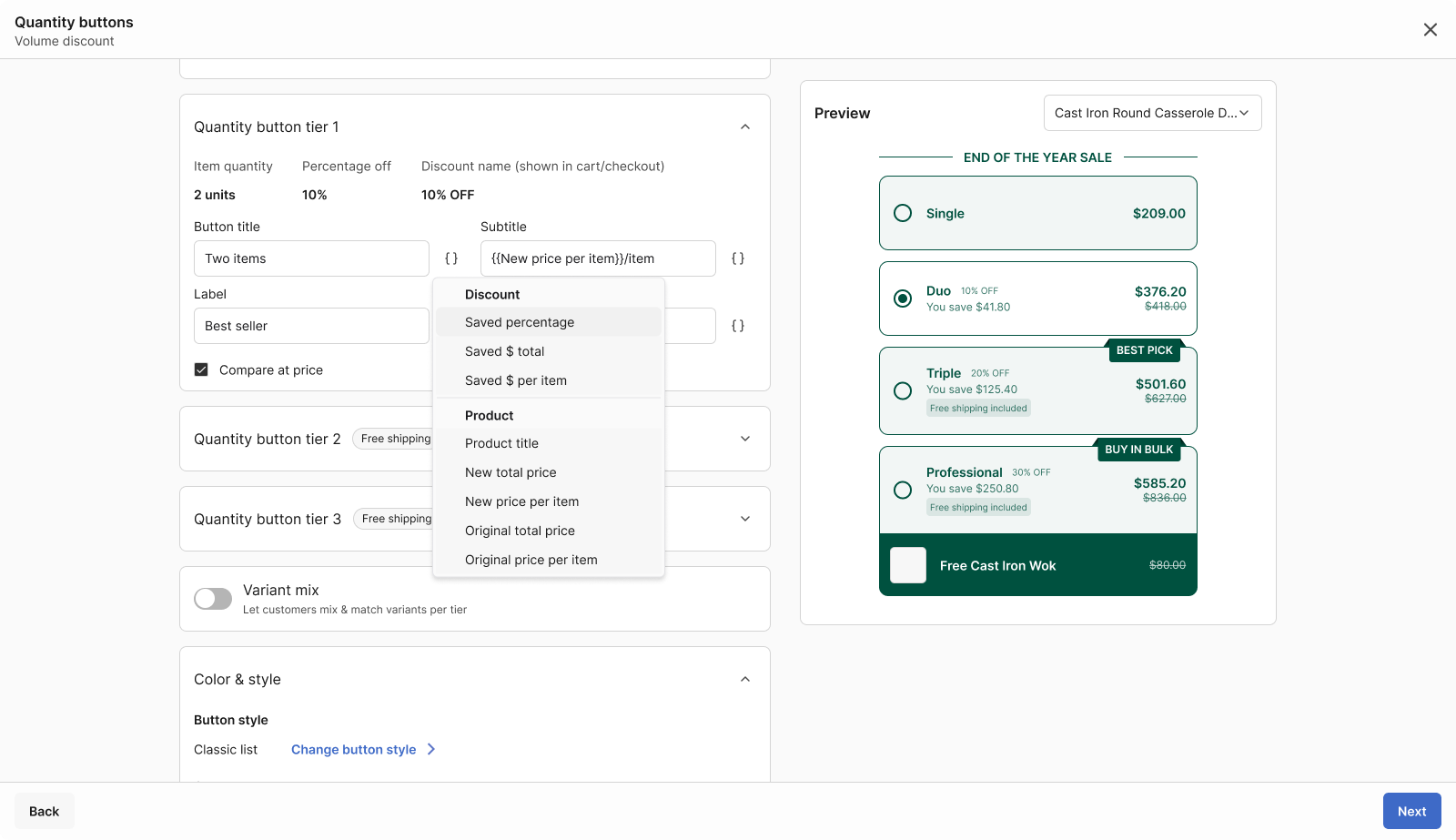
Use dynamic variables to populate button text automatically — like the product title or saved amount. Type two brackets or use the field menu on the right to insert them.
**Example Usage:** "Save {Saved percentage} on {Product title}" to display as "Save 15% on Cast Iron Round Casserole Dish"
#### Discount Variables
* `{Saved percentage}`: Display discount percentage
* `{Saved $ total}`: Total dollar savings
* `{Saved $ per item}`: Per-unit savings amount
#### Product Variables
* `{Product title}`: Specific product names
* `{New total price}`: Discounted total price
* `{New price per item}`: Discounted per-unit price
* `{Original total price}`: Original total pricing
* `{Original price per item}`: Original per-unit cost
### Color & Style
Styling options available include:
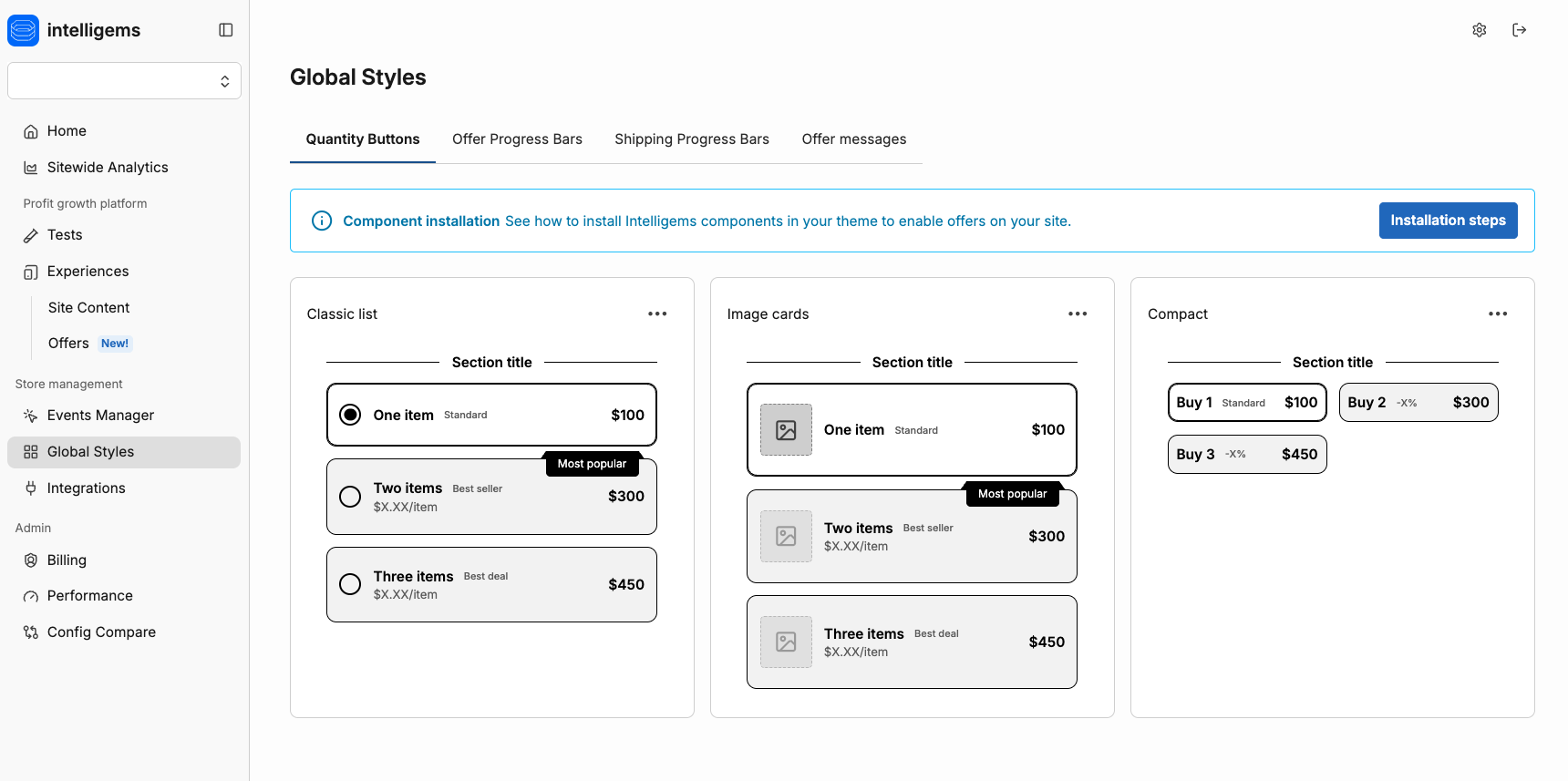
* **Button Style:** Choose from three button style options.
* **Classic List:** Clean, vertical layout with quantity tiers. Best for traditional presentations with detailed pricing.
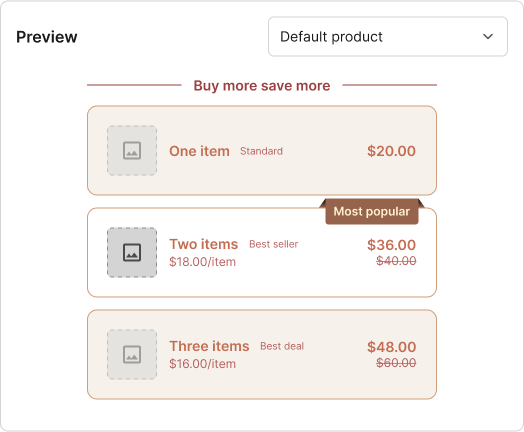
* **Image Cards:** Includes product images for each option. Ideal for bundles, gift sets, and visual product storytelling.
* **Compact:** Space-saving layout for quick comparison. Perfect for limited space and mobile experiences.
* **Layout Options:** Choose between a side-by-side or stacked layout.
* **Colors:** Control the colors for all fields.
* **Typography:** Control the font sizes and styles for each text field.
{% hint style="success" %}
You can also customize the look of your quantity buttons in [**Global Styles**](/general-features/editors/global-styles.md) (left menu) to keep them consistent across all your offers. You can adjust button styles, primary/secondary/border colors, and set separate styles for desktop and mobile.
{% endhint %}
## Integrating the Quantity Buttons
No separate setup is needed in most cases — the buttons are automatically installed once the Intelligems script is added to your theme & you have set up an offer that includes the quantity buttons component.
{% hint style="warning" %}
Note that you will need to preview or start your offer in order to see the quantity buttons on your site.
{% endhint %}
If you don't see the buttons while previewing or once you're started your offer, or they are in the wrong location, your theme may use a custom quantity selector that differs from the standard format.
To resolve this, you'll need to manually place the below snippet in your theme code.
```liquid
```
Follow these steps to do so:
1. Access your theme code in Shopify.
2. Locate your product page file.
1. The file is typically called `sections/main-product.liquid` for OS 2.0 themes, or `templates/product.liquid` for older themes. If you're unsure, reach out to our support team.
3. Find your current qunatity selector.
1. To orient yourself, search your file for `type="number"` or `name="quantity"` to see your product page structure.
2. If your theme uses `{%- when 'xyz' -%}` blocks (OS 2.0 themes), you'll see sections like `variant_picker`, `quantity_selector`, and `buy_buttons`.
4. Insert the snippet where you want the buttons to appear — common placements are:
1. Right before your add to cart button code
2. Between variant selection and purchase buttons
3. Near your existing quantity selector
5. Test and adjust.
1. Save your changes in Shopify — nothing will appear for customers until you publish your Intelligems offer.
2. Preview your offer in Intelligems.
3. Check if the buttons appear where you want them.
4. If they're not in the right spot, move the snippet to a different location and test again.
{% hint style="info" icon="file-magnifying-glass" %}
Here's an example placement for reference:
```liquid
{%- when 'variant_picker' -%}
{% render 'product-variant-picker'... %}
{%- when 'buy_buttons' -%}
```
{% endhint %}
## FAQs
How do I update the default quantity in my quantity buttons?
To change the default quantity selected in an offer, you'll need to change the default quantity within Shopify.
Will the quantity buttons work with multiple currencies?
By default, quantity buttons will **only reflect your store's default currency**. To solve for this, you can either set up audience targeting for your default currency, or follow the steps below to use the buttons with multiple currencies:
1. Add the script below to the `` section of your **theme.liquid** file.
```
```
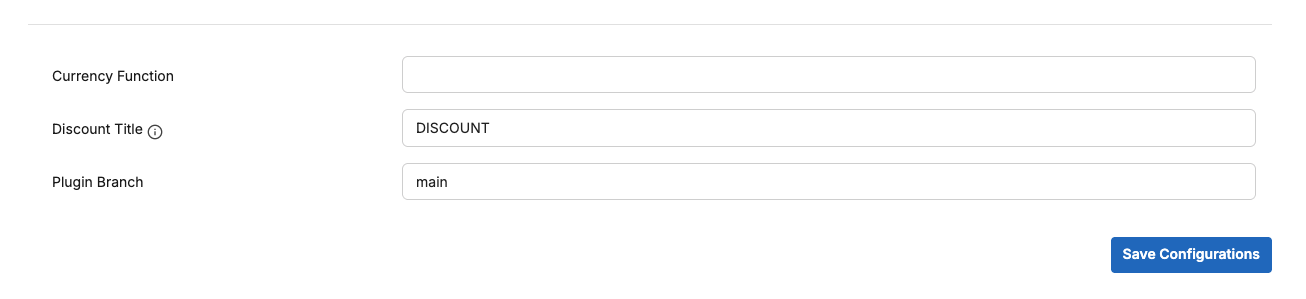
2. Inside Intelligems, go to Settings and scroll down to **Currency Function.**
3. Add `window.igCurrencyFn` into the **Currency Function** field and click **Save Configurations.**
---
# Agent Instructions
This documentation is published with GitBook. GitBook is the documentation platform designed so that both humans and AI agents can read, navigate, and reason over technical content effectively. Learn more at gitbook.com.
## Querying This Documentation
If you need additional information that is not directly available in this page, you can query the documentation by asking a question.
Perform an HTTP GET request on the following URL with the `ask` and `goal` query parameters:
```
GET https://docs.intelligems.io/merchandising-experiences/offers-integrating-widgets/quantity-buttons.md?ask=&goal=
```
`ask` is the immediate question: it should be specific, self-contained, and written in natural language.
`goal` is what the user is ultimately trying to achieve, the reason they need the answer. Sharing it helps GitBook give you a better, more relevant answer. A goal is most helpful when it describes the outcome the user wants rather than restating the question. For example, with `ask=how do I create an API token`, a goal like `automate deployments from our CI pipeline` lets GitBook tailor the answer to that use case.
The response will contain a direct answer to the question and relevant excerpts and sources from the documentation.
Use this mechanism when the answer is not explicitly present in the current page, you need clarification or additional context, or you want to retrieve related documentation sections.