> For the complete documentation index, see [llms.txt](https://docs.intelligems.io/llms.txt). Markdown versions of documentation pages are available by appending `.md` to page URLs; this page is available as [Markdown](https://docs.intelligems.io/post-purchase-experiences/post-purchase-upsell-qa-checklist.md).
# Post-Purchase Upsell QA Checklist
## What to Check First
Once your Post-Purchase Upsell is set up, you'll need to QA your site to make sure everything works as expected. Before heading to your site, confirm a few things first:
* [ ] Is the Intelligems JavaScript installed in your live theme? Check out [Adding Intelligems Script to your Theme](/getting-started/adding-intelligems-script-to-your-theme.md) for more information.
* [ ] Have you [enabled Intelligems as your post-purchase page](/post-purchase-experiences/getting-started-with-post-purchase-upsells/how-to-set-up-a-post-purchase-upsell-personalization-or-test.md#step-5-enable-intelligems-in-shopify) in Shopify?
## Preview Your Experience
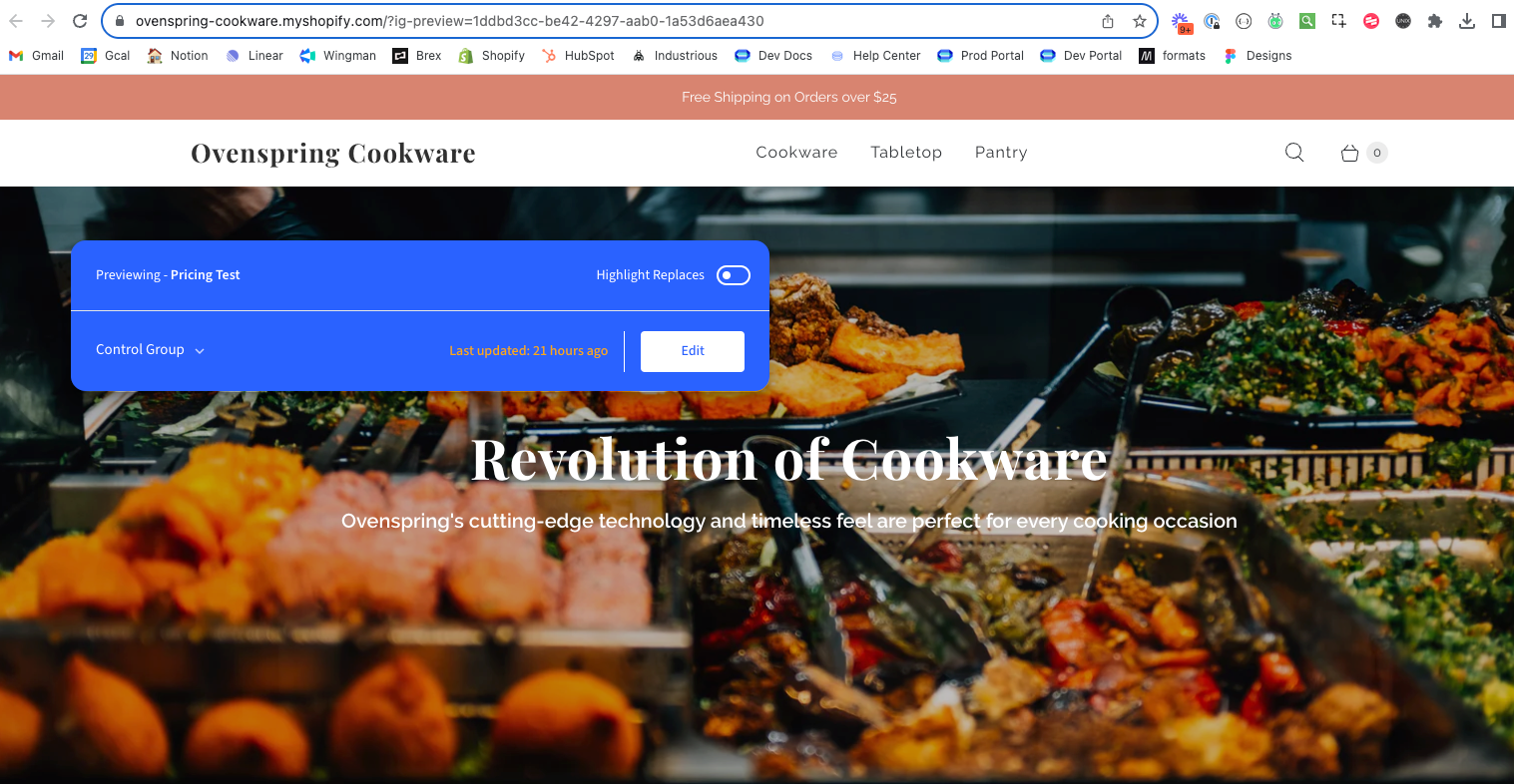
Once you have confirmed both of those items are true, you can preview the test or personalization on your live site. Enter Preview mode by clicking on the ... menu next to your experience.
This opens your site in a new window with the Intelligems preview widget enabled. In the preview widget, you'll see:
1. The name of the experience you're previewing (top left)
2. A dropdown to switch between test groups (bottom left)
3. A toggle to highlight any replacements (top right)
4. An edit button to enable integration mode, where you can edit on-site content (bottom right)
### Step 1: **Set Up a Way to Place Test Orders**
Before you can QA your Post-Purchase Upsell, you'll need a way to complete checkout without placing a real order. How you do this depends on your store type.
**If you're on a Shopify test/development store:** You can use Shopify's Bogus Gateway or Shopify Payments' Test Mode to simulate orders without real transactions. Learn how to set those up [here](https://help.shopify.com/en/manual/checkout-settings/test-orders/payments-test-mode#activate-bogus-gateway).
**If you're on a live production store:** Use your existing internal test order practices. This typically involves placing and then immediately cancelling and refunding the order.
Whichever method you use, the goal is the same: complete the checkout flow so the post-purchase page triggers.
### Step 2: Confirm That Post-Purchase Upsells Are Displaying Correctly
Now it's time to verify your upsells are appearing correctly after checkout. Choose one of the test groups from the preview widget dropdown, and add a product (or products) to your cart that qualifies for your Post-Purchase Upsell.
Proceed through checkout and place a test order using one of the methods in Step 1, or another preferred method.
Once the order is placed, your Post-Purchase Upsell should appear. Verify the following:
**Styling & content looks correct:**
* [ ] Text is readable and properly formatted
* [ ] Images display correctly and are the right size
* [ ] Colors match your configuration
* [ ] Spacing looks correct (not too cramped or too spread out)
* [ ] The expected products are displayed
* [ ] Discounts and pricing are displayed correctly
**Functionality is working:**
* [ ] Accepting an upsell adds it to your order
* [ ] Declining an upsell takes you to the thank you page
* [ ] Pricing looks correct
Be sure to test multiple scenarios to ensure the upsells always display correctly. This list is not exhaustive, and not every scenario will apply to your site. A few scenarios we recommend testing include:
* Orders with different products
* Control group visitors (no upsell should appear)
* Visitors who meet targeting rules (confirm the right upsell appears)
* Multiple devices and browsers (e.g., desktop Chrome and mobile Safari)
Complete these steps in each test group. If you notice any issues, or have any questions, please [reach out to support](https://portal.usepylon.com/intelligems/forms/intelligems-support-request).
### What happens next?
Now that you've completed the QA checklist for your Post-Purchase Upsell, you can start your test.
---
# Agent Instructions
This documentation is published with GitBook. GitBook is the documentation platform designed so that both humans and AI agents can read, navigate, and reason over technical content effectively. Learn more at gitbook.com.
## Querying This Documentation
If you need additional information that is not directly available in this page, you can query the documentation by asking a question.
Perform an HTTP GET request on the following URL with the `ask` and `goal` query parameters:
```
GET https://docs.intelligems.io/post-purchase-experiences/post-purchase-upsell-qa-checklist.md?ask=&goal=
```
`ask` is the immediate question: it should be specific, self-contained, and written in natural language.
`goal` is what the user is ultimately trying to achieve, the reason they need the answer. Sharing it helps GitBook give you a better, more relevant answer. A goal is most helpful when it describes the outcome the user wants rather than restating the question. For example, with `ask=how do I create an API token`, a goal like `automate deployments from our CI pipeline` lets GitBook tailor the answer to that use case.
The response will contain a direct answer to the question and relevant excerpts and sources from the documentation.
Use this mechanism when the answer is not explicitly present in the current page, you need clarification or additional context, or you want to retrieve related documentation sections.