> For the complete documentation index, see [llms.txt](https://docs.intelligems.io/llms.txt). Markdown versions of documentation pages are available by appending `.md` to page URLs; this page is available as [Markdown](https://docs.intelligems.io/pricing-experiences/price-test-qa-checklist.md).
# Pricing Experience QA Checklist
Use this checklist to QA every Price Test before hitting start!
{% hint style="success" %}
**Let the AI QA Agent take the first pass.** It reviews your test configuration and your live storefront and returns a report telling you what's broken, why it matters, and how to fix it — with screenshots. Run it from the **QA & Preview** tab of any test. [Learn more](/general-features/atlas-ai/atlas-qa.md).
{% endhint %}
This QA list is specific to a price test. If you are QAing a shipping test, please check out [this article](/shipping-experiences/shipping-test-qa-checklist.md)!
### **Check your integration first**
Before heading to your site, there are a few things you should check to make sure your integration is functional:
* [ ] Is Intelligems JavaScript in your live theme? Check out [this article](https://docs.intelligems.io/getting-started/adding-intelligems-script-to-your-theme) for more information on where to find this.
### **Open the preview**
Open your experience and go to the **Preview** tab.
* [ ] Choose a theme in the **Theme** dropdown, then click **Open preview**. Your site opens in a new tab with the Intelligems widget loaded. If nothing opens, your browser is blocking the popup or the script isn't loading.
* [ ] Use **Copy link** or a QR code under **Preview on mobile** to QA each group on a phone. Do it separately rather than assuming mobile matches. Price elements sit differently in a mobile cart drawer, and that's where most of your traffic is.
You can reach the same thing from the `...` menu on the experiences list, which offers **Open desktop preview** and **Get QR code for mobile**.
{% hint style="info" %}
Please note that if you sell in multiple currencies, a price test which includes prices higher than the control group's prices may have implications for any non-default currencies if they are set to dynamically convert against your store's default currency.\
\
In Shopify Markets, or wherever your store's currency pricing is managed, be sure to set non-default currency prices as fixed/static for the duration of the test if you would like to avoid any unintended price increases in these markets.
{% endhint %}
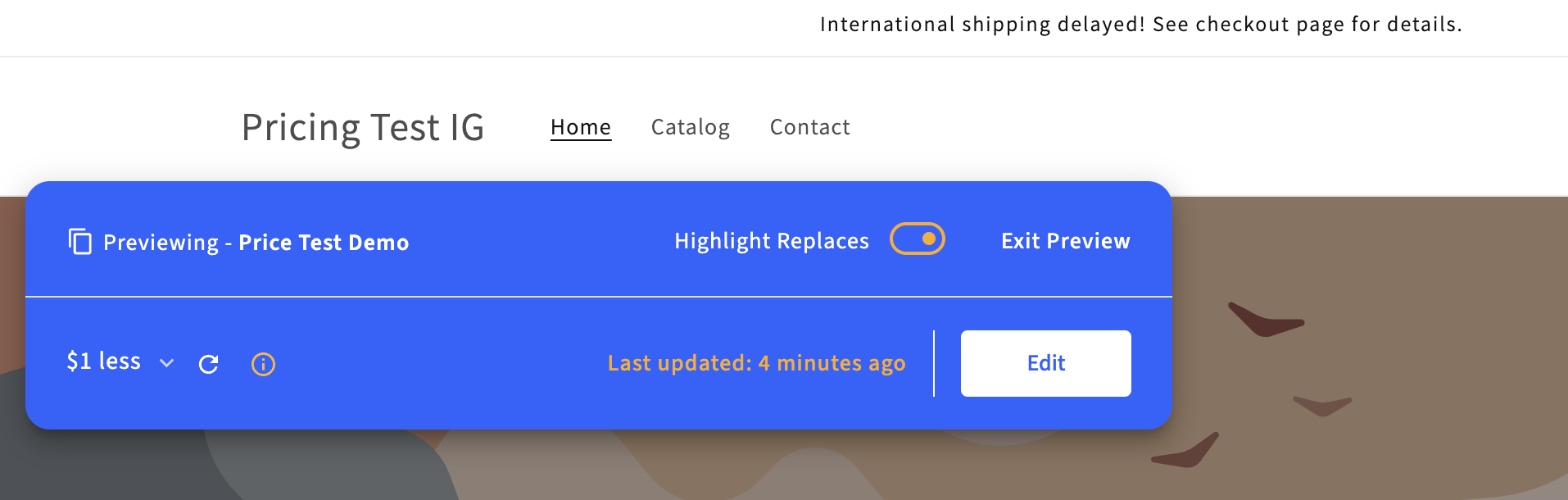
In the widget you'll see:
1. The name of the experience you're previewing, top left
2. A **Highlight Modifications** toggle, on by default
3. **Exit Preview**
4. A dropdown to switch groups, with a line underneath confirming which one you're in
5. A refresh control and a **Last updated** timestamp
6. An **Edit** button, which opens integration mode so you can edit price selectors and text replacements
{% hint style="info" %}
If the widget doesn't appear at all, that's the integration rather than the experience. The two causes we see most are price selectors that are missing or malformed, and the script having been removed from the theme at some point. Reach out to support instead of editing the experience.
{% endhint %}
### **Check prices across your site**
With **Highlight Modifications** on, every price we recognize is highlighted green or blue.
* [ ] Confirm that prices tagged in green *are* part of the experience. Green means we recognize the element is a price and *we are changing it* for the group you're previewing.
* [ ] Confirm that prices tagged in blue *are not* part of the experience. Blue means we recognize the element is a price but *we aren't changing it*, because that product isn't included. Worth confirming anyway, since you may test that price later.
* [ ] Is a product that *is* in the experience highlighted blue? We can't tell which product or variant that price belongs to. Follow [these steps](/pricing-experiences/price-testing-integration-guides/troubleshooting/how-to-add-the-data-product-id-and-or-data-variant-id-attribute-to-an-element.md) to add the `data-product-id` or `data-variant-id` attribute to the element.
* [ ] Switch groups with the dropdown in the widget and confirm the price for every product and variant matches what you configured. Check every group, not just one.
Pages worth checking:
* [ ] Homepage
* [ ] Collection pages
* [ ] Search bar
* [ ] Search results
* [ ] Product page
* [ ] Recommended items on the product page, for example `You May Also Like` or `Recently Viewed`
* [ ] Upsells in cart
* [ ] Product quiz
* [ ] Landing pages
* [ ] Navigation
On the product page, confirm all of this is true:
* [ ] The correct price displays for each group. Check different variants if that's an option.
* [ ] Bulk purchase and subscription options match the live site or the design.
* [ ] Ratings and reviews match the live site.
* [ ] Other media, such as images, video and text, matches the live site.
* [ ] Text that references price updates with it. Copy like `20% off for subscriptions`, or text describing the value of individual items in a bundle, has to move too.
{% hint style="info" %}
If you sell in multiple currencies, a price above your control group's may affect non-default currencies set to convert dynamically against your store's default. In Shopify Markets, or wherever your currency pricing is managed, set non-default prices as fixed for the duration of the experience to avoid unintended increases in those markets. More on multi-currency.
{% endhint %}
### **Check the cart and checkout**
Add a handful of products from the experience to the cart and go through to checkout.
* [ ] Using Duplicate Products? Confirm the duplicates are set to **Unlisted**.
* [ ] The price is calculated correctly at each step: mini cart, cart page, checkout. On Duplicate Products the cart price should match the group.
* [ ] Increase the quantity of a test item to two from within the cart. The prices should still be right.
* [ ] If you offer options other than one-time purchase, such as subscription or bulk, confirm those are right at each step.
* [ ] `ig_discount` and other `ig_items` aren't showing in the cart or at checkout.
* [ ] Payment plan options such as AfterPay or ShopPay calculate the monthly payment off the test price.
* [ ] Compare shipping rates to the live site. This matters most if you have custom rates set up.
* [ ] Add to cart from each of your landing pages, in different groups, and confirm the price at checkout.
* [ ] Do you have a quick buy button, like Buy with ShopPay, on a product or collection page? It skips the cart, so the order goes through at your catalog price rather than your test price. Hide it on the pages in your experience.
{% hint style="warning" %}
Preview shows you the prices we replace. It doesn't put you in a group, so anything on your site that asks Intelligems which group a visitor is in gets no answer and falls back to its default. Custom bundle code is the usual case. To QA that, put `?igTg=` on your normal store URL instead of using the preview link. The parameter is case sensitive.
{% endhint %}
### **Place a test order**
**We highly recommend placing a test order.** It's particularly important in these cases:
* [ ] If you are testing subscription products - once you have placed your test order, check the refill prices in your subscription app.
* [ ] If you use Line Item Properties for any information that is pertinent after the order has been submitted, such as customization information. **If you are not on Shopify Plus, these Line Item Properties are not compatible with Functions, and they will be wiped from the order.**
{% hint style="info" %}
Check all of the above items in mobile as well. Here is a [guide](https://www.browserstack.com/guide/view-mobile-version-of-website-on-chrome) on how you can view mobile mode on your desktop on Chrome.
{% endhint %}
### **Before you start it**
Once everything above looks right, you're ready to go live. Click here for our guide on [Starting A Price Change Experience](/pricing-experiences/pricing-experiences-overview/starting-a-price-test.md).
Once you have confirmed all of the above items look correct, you can hit start on your test in the app! If you made any fixes along the way, it's worth re-running the [AI QA Agent](/general-features/atlas-ai/atlas-qa.md) first: a clean report confirms your fix actually worked. Please [reach out to Intelligems support](https://portal.usepylon.com/intelligems/forms/intelligems-support-request) if you have any questions.
---
# Agent Instructions
This documentation is published with GitBook. GitBook is the documentation platform designed so that both humans and AI agents can read, navigate, and reason over technical content effectively. Learn more at gitbook.com.
## Querying This Documentation
If you need additional information that is not directly available in this page, you can query the documentation by asking a question.
Perform an HTTP GET request on the following URL with the `ask` and `goal` query parameters:
```
GET https://docs.intelligems.io/pricing-experiences/price-test-qa-checklist.md?ask=&goal=
```
`ask` is the immediate question: it should be specific, self-contained, and written in natural language.
`goal` is what the user is ultimately trying to achieve, the reason they need the answer. Sharing it helps GitBook give you a better, more relevant answer. A goal is most helpful when it describes the outcome the user wants rather than restating the question. For example, with `ask=how do I create an API token`, a goal like `automate deployments from our CI pipeline` lets GitBook tailor the answer to that use case.
The response will contain a direct answer to the question and relevant excerpts and sources from the documentation.
Use this mechanism when the answer is not explicitly present in the current page, you need clarification or additional context, or you want to retrieve related documentation sections.