> For the complete documentation index, see [llms.txt](https://docs.intelligems.io/llms.txt). Markdown versions of documentation pages are available by appending `.md` to page URLs; this page is available as [Markdown](https://docs.intelligems.io/pricing-experiences/pricing-experiences-overview/ending-a-price-test.md).
# Ending a Price Change Experience
Follow these steps to end your Price Test.
Ending a Price Change writes one group's prices into Shopify and stops serving the rest. Decide which prices you're keeping before you stop it.
{% hint style="danger" %}
**A Price Change can only be rolled out once, at the moment you end it.** Other experience types can be rolled out later from an experience that has already ended. This one can't. If you end without choosing a group, your control prices stay in place, and getting a test group's prices live means building the experience again.
{% endhint %}
{% hint style="info" %}
**Not ready to end it?** Pausing stops serving test prices and keeps the experience and its results. Choose the option to revert your prices when you pause, otherwise your Shopify prices stay at the highest price in the experience. If you ended an experience you meant to pause, reach out to our support team and we can set it back to paused.
{% endhint %}
{% hint style="info" %}
Ending a Price Change Personalization works differently. Click **Disable** on the row and it stops applying. A Personalization can only price below your Shopify price, so there are no prices to roll back and no duplicates to archive.
{% endhint %}
### **Step 1: Stop the experience**
In the left nav, go to **Pricing**, find the experience in the list, and click **Stop**. The same button sits at the top of the experience's **Results** tab.
### **Step 2: Roll out prices**
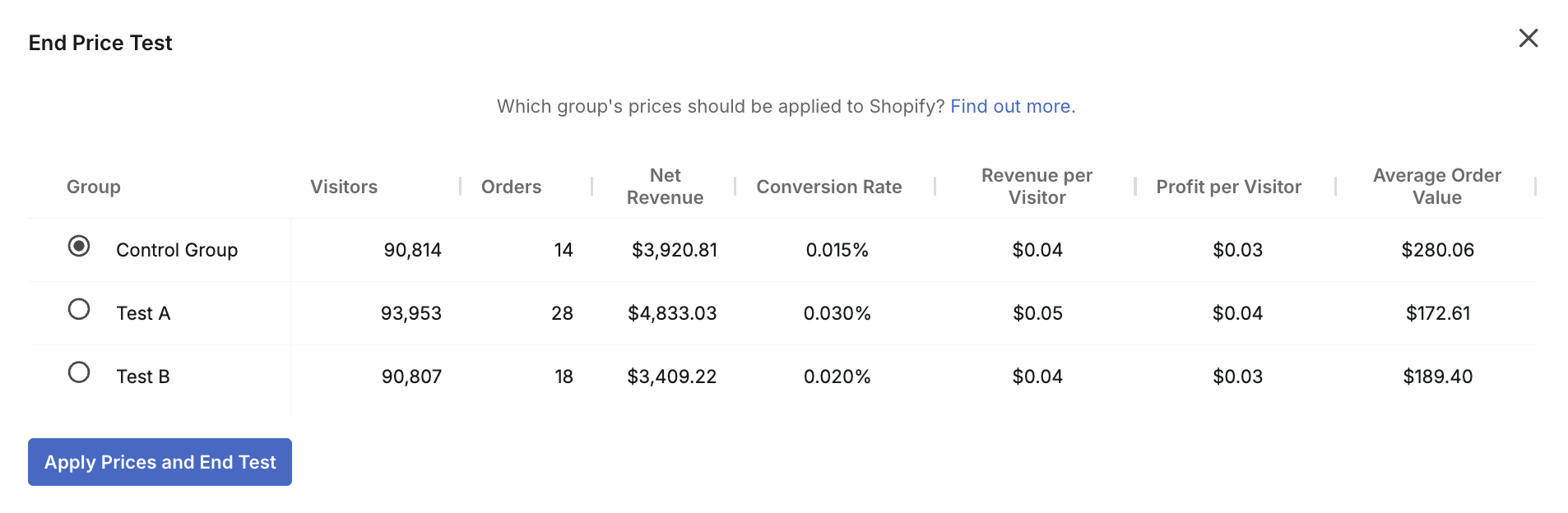
A modal opens with the key metrics for each test group. Choose which group's prices to implement in Shopify, then click **Apply Prices and End Test**.
* If ***Shopify Functions*** were used to run the experience, prices for the products in Shopify will be updated and the Intelligems Function will no longer be applied.
* If ***duplicate products*** were used to run the experience, prices for the original products in Shopify will be updated, if needed, and traffic will no longer be directed to the duplicate products.
Choosing your control group leaves your original prices exactly as they are.
{% hint style="warning" %}
**Any other modifications in the experience are not rolled out.** If you added Content Edits or Styles & Javascript alongside your prices, those changes end with the experience. Apply them in Shopify yourself, or build a Content Experience with the same changes and start it once your prices are live.
{% endhint %}
{% hint style="danger" %}
If ***duplicate products*** were used to create the experience, the next modal gives you three choices:
1\. Archive the duplicate products immediately.
2\. Archive the duplicate products after 48 hours. They stay `Active` in Shopify for the **following 48 hours** while we stop sending them traffic. We recommend this option so that a customer with a duplicate product already in their cart can still check out.
3\. Leave the duplicate products `Active` until you archive them yourself in Shopify. Click outside the pop-up to take this option. Choose this one if you have subscriptions to migrate and want more than 48 hours to do it.
You can find every duplicate we created by searching Shopify for the `price_test` tag. More on cleaning them up in [Pricing Experiences FAQs](/pricing-experiences/price-testing-faqs.md).
{% endhint %}
{% hint style="warning" %}
**Testing a currency other than your store's default?** Ending the experience doesn't roll that market back on its own. You'll be prompted to download a CSV of the prices you're keeping and upload it to Shopify Markets or send it to your Global-e account manager. Your default-currency prices revert without a CSV. See [Multi-Currency Testing](/pricing-experiences/pricing-experiences-overview/multi-currency-testing.md).
{% endhint %}
### **Step 3: Update Marketing As Needed**
Did you roll out new prices based on the results of the test? If so, you'll want to do a thorough sweep of anywhere you may include prices – think emails, social media, advertisements, etc. If you used our [Visual Builder](/general-features/editors/visual-builder.md) to change the text in these locations during the test, you'll want to update it again to match the new prices going forward.
If you manage your Google Shopping feed manually or through an app, trigger a feed update once the new prices are in Shopify.
### **Step 4: Update Subscriptions As Needed**
If ***duplicate products*** were used to run the experience and you offered subscriptions on them, you'll need to merge the duplicate products with the original products within your subscription provider. Anyone who subscribed during the experience is tied to a duplicate product, and once that duplicate archives their renewals will fail. Do this before the archive window you chose in Step 2 closes.
If you use Recharge, [this article](https://support.rechargepayments.com/hc/en-us/articles/360008829533#h_01GK355HXA27ESB482GZM33HF9) will walk you through the process to do so. If you work with another subscription provider, we recommend reaching out to their support team for information on how to bulk update products.
{% hint style="info" %}
Ending an experience doesn't change your selling plans. If a test group won and you want its discount for new subscribers, set that up in your subscription app.
{% endhint %}
{% hint style="info" %}
When reaching out to your subscription provider's support team, we recommend saying something along the following, as well as including a spreadsheet similar to the below with a row for each product that has subscriptions and was duplicated for the test:
{% endhint %}
*Hello Support,*
*We're looking to do a bulk swap of products/variants tied to subscriptions for **Store Name**. I'm attaching a spreadsheet which maps the current product / variant IDs to what they should be updated to in **Subscription Provider's** backend. We're doing this because the current products are going to be deleted. Please let me know if you have any questions, or if this is something I can do on our end.*
| **Product Title** | **Current Product ID** | **Desired Product ID** | **Current Variant ID** | **Desired Variant ID** |
| ------------------- | ---------------------- | ---------------------- | ---------------------- | ---------------------- |
| Duplicate Product A | 7926607872639 | 7066606823681 | 43624551698273 | 41124551612498 |
| Duplicate Product B | 7926606823762 | 7082606823681 | 43624538571743 | 43629768571009 |
### **Step 5: Check your prices onsite**
Price updates run through your catalog in a batch, so give them time to finish before you judge what you see. Once they've landed, check a product from each group on your PDPs, collection pages and cart.
If anything is still showing a price from the experience after the batch completes, [reach out to our support team](https://portal.usepylon.com/intelligems/forms/intelligems-support-request).
---
# Agent Instructions
This documentation is published with GitBook. GitBook is the documentation platform designed so that both humans and AI agents can read, navigate, and reason over technical content effectively. Learn more at gitbook.com.
## Querying This Documentation
If you need additional information that is not directly available in this page, you can query the documentation dynamically by asking a question.
Perform an HTTP GET request on the current page URL with the `ask` query parameter, and the optional `goal` query parameter:
```
GET https://docs.intelligems.io/pricing-experiences/pricing-experiences-overview/ending-a-price-test.md?ask=&goal=
```
`ask` is the immediate question: it should be specific, self-contained, and written in natural language.
`goal` is optional and describes the broader end goal you are ultimately trying to accomplish on behalf of the user. GitBook uses it to tailor the answer towards what is most useful for that goal.
The response will contain a direct answer to the question and relevant excerpts and sources from the documentation.
Use this mechanism when the answer is not explicitly present in the current page, you need clarification or additional context, or you want to retrieve related documentation sections.