> For the complete documentation index, see [llms.txt](https://docs.intelligems.io/llms.txt). Markdown versions of documentation pages are available by appending `.md` to page URLs; this page is available as [Markdown](https://docs.intelligems.io/pricing-experiences/pricing-experiences-overview/testing-prices-with-subscriptions/testing-prices-with-recharge-2.0-or-stay.ai.md).
# Testing Prices with Recharge 2.0 or Stay.Ai
This document shows how to set up Intelligems if you want to test prices and you're using Recharge 2.0 or Stay.ai.
{% hint style="danger" %}
This article only applies if you use Stay.AI, you are using Shopify Plus, and have access to the Script Editor app. If you are using Stay.AI, you must also only offer one delivery option (i.e. Every 30 Days). If any of these are not true, please see our following guides on using duplicate products, or reach out to support [here](https://portal.usepylon.com/intelligems/forms/intelligems-support-request).
{% endhint %}
### Step 1: Authorize the integration
In the Intelligems App, navigate to "Integrations" on the bottom left.
You need to create an API key from your Stay.AI dashboard. Log into Stay, under Settings > API keys, create a new key.
* Name: **Intelligems**
* Description: **Used for Intelligems <> Stay Integration**
* Email: **Your email**
* Scopes: **All**

Then Copy the API key into the Intelligems dashboard into the Stay.ai API key

### Step 2: Set up test in the Intelligems app
See our detailed guide [here](/pricing-experiences/pricing-experiences-overview/how-to-set-up-a-price-test.md) on setting up your Price Test. Make sure to do this ***after*** you have authorized the integration with your subscription provider. If you have not, you should delete your old test and create a new test from scratch.
### Step 3: QA your test
Assuming you've already completed the [integration](/pricing-experiences/price-testing-integration-guides/integration-guide-using-checkout-scripts.md) that is required for Price Testing, the next step is to QA your test! Because tests that involve subscriptions have more moving pieces, we recommend spending some extra time on QA - follow [this checklist](https://docs.intelligems.io/price-testing/price-test-qa-checklist) to make sure you don't miss anything!
### Handling custom widgets and UI
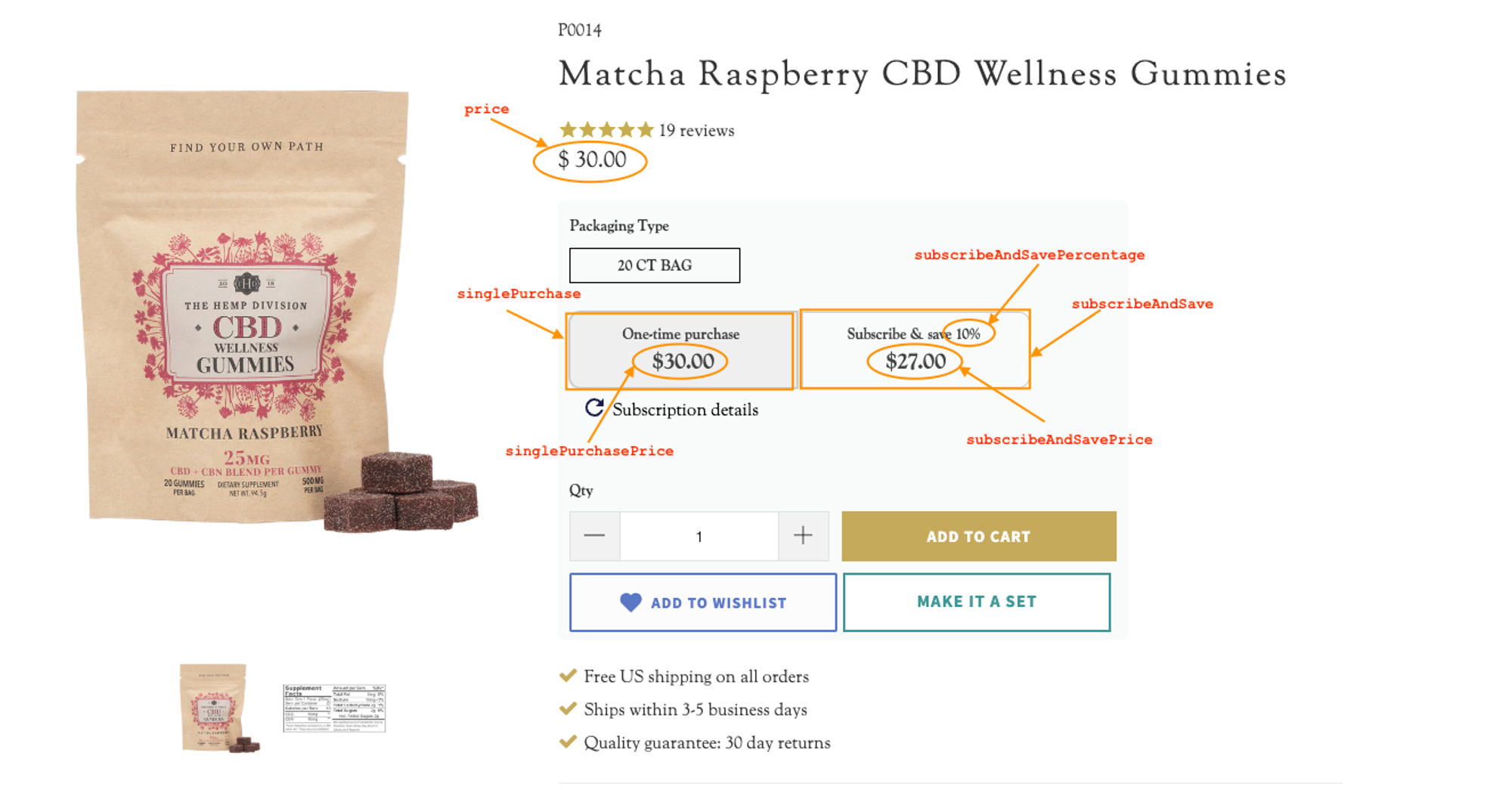
If you're not using a standard widget from your subscription provider on your PDP, our onboarding team would be happy to help integrate your own custom UI with Intelligems. It's relatively straightforward, we just need to identify the PDP elements identified in this example screenshot.
If you have questions, please reach out to support [here](https://portal.usepylon.com/intelligems/forms/intelligems-support-request)!
---
# Agent Instructions
This documentation is published with GitBook. GitBook is the documentation platform designed so that both humans and AI agents can read, navigate, and reason over technical content effectively. Learn more at gitbook.com.
## Querying This Documentation
If you need additional information that is not directly available in this page, you can query the documentation dynamically by asking a question.
Perform an HTTP GET request on the current page URL with the `ask` query parameter, and the optional `goal` query parameter:
```
GET https://docs.intelligems.io/pricing-experiences/pricing-experiences-overview/testing-prices-with-subscriptions/testing-prices-with-recharge-2.0-or-stay.ai.md?ask=&goal=
```
`ask` is the immediate question: it should be specific, self-contained, and written in natural language.
`goal` is optional and describes the broader end goal you are ultimately trying to accomplish on behalf of the user. GitBook uses it to tailor the answer towards what is most useful for that goal.
The response will contain a direct answer to the question and relevant excerpts and sources from the documentation.
Use this mechanism when the answer is not explicitly present in the current page, you need clarification or additional context, or you want to retrieve related documentation sections.