> For the complete documentation index, see [llms.txt](https://docs.intelligems.io/llms.txt). Markdown versions of documentation pages are available by appending `.md` to page URLs; this page is available as [Markdown](https://docs.intelligems.io/shipping-experiences/shipping-testing-getting-started/ending-a-shipping-test.md).
# Ending a Shipping Experience
Follow these steps to end a Shipping Test in the Intelligems app.
Ending a Shipping Rates experience stops Intelligems serving your test rates and restores the rates that were removed when you started. Setting the winning rates live is a change you make in your own Shopify shipping settings, so plan to do all of this in one sitting.
{% hint style="warning" %}
**A Shipping Rates experience can't be rolled out from Intelligems.** Other experience types have a Roll Out option that applies the winning group for you. Shipping doesn't, for technical reasons: once Intelligems stops acting as your rate carrier, your rates are yours again. Ending the experience gives you your original rates back, and you set the winning values from there.
{% endhint %}
## **Step 1: End the experience**
In the left nav, go to **Shipping**, find your experience in the list, and click **Stop**. The same button sits at the top of the experience's **Results** tab.
{% hint style="info" %}
**Pausing isn't the same as ending.** Pausing also puts your original rates back, but Intelligems stays registered as a rate carrier on the zones or markets you're testing. Pause when you want to edit the profiles, zones or rates inside the experience, since those can't be changed while it's running. End when you're finished with the experience, which is also what frees you up to create your next one.
{% endhint %}
## Step 2: Configure the Shipping Rates in Shopify to Roll Out
Shipping is the one experience type Intelligems can't roll out for you. See [Rolling Out Tests](/general-features/rolling-out-tests.md) for how the other types differ.
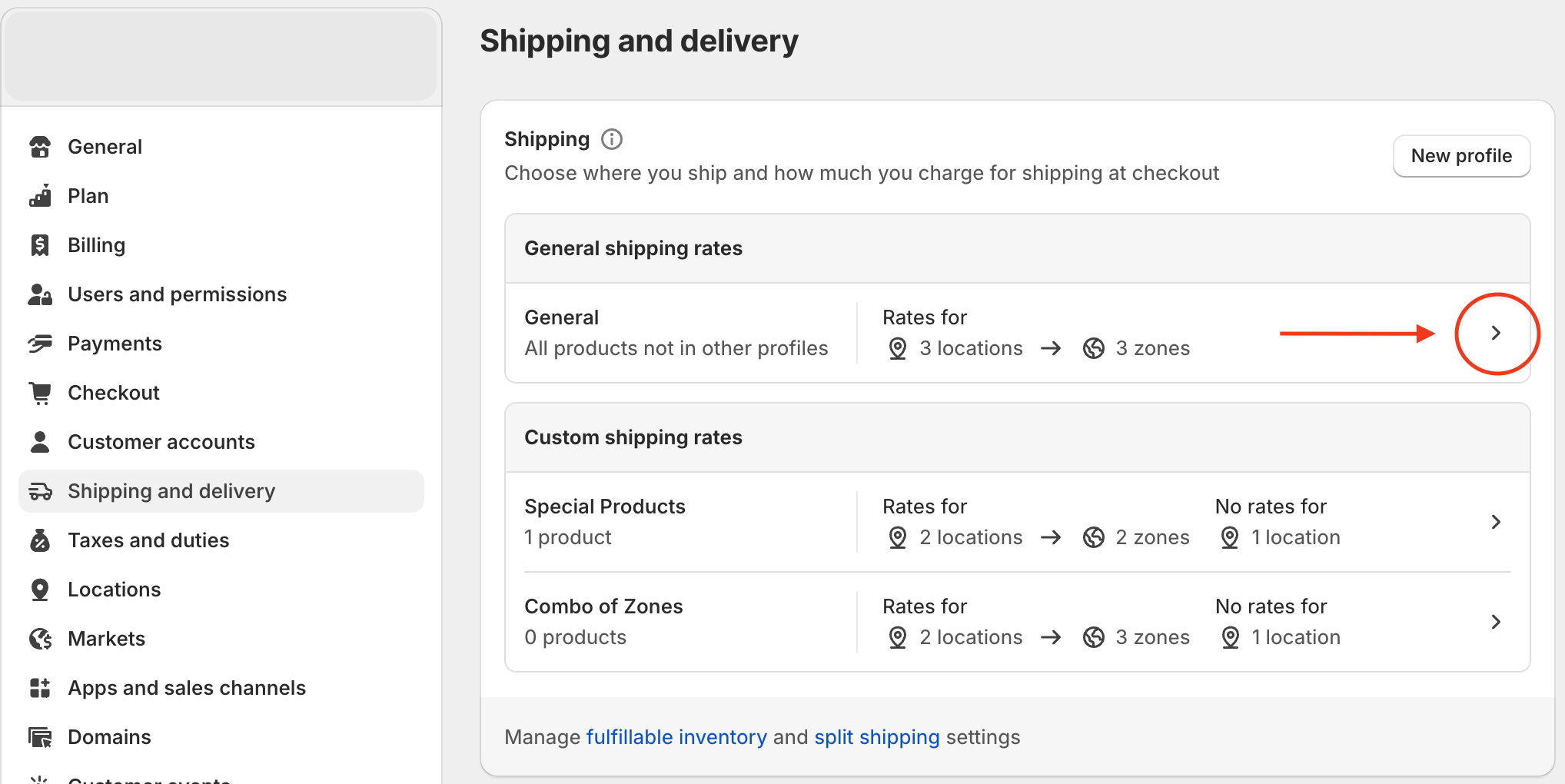
**If your store uses shipping profiles:** go to **Settings → Shipping and delivery** and select the shipping profile(s) you tested in. Update the rates to match what you'd like to roll out.
**If your store uses Markets-driven shipping:** go to **Settings → Shipping and delivery** and click the market(s) you tested in, or go to **Markets → \[market] → Shipping**. Edit the shipping options to match what you'd like to roll out.
## Step 3: Update Your Progress Bar, if Applicable
If you used an [Intelligems shipping progress bar](/shipping-experiences/shipping-progress-bar-integration.md) during your test, you can continue to use it for a Shopify-powered free shipping offer. You'll simply need to create a sitewide [free shipping offer experience](/merchandising-experiences/offer-modifications/offers-library/how-to-set-up-a-free-shipping-threshold-offer.md) in Intelligems and select the "powered by Shopify" option.
## Step 4: Update Any References to the Shipping Policy on Your Site, if Needed
Often these are addressed using the Intelligems Onsite Edit feature during the test, but will revert to whatever is configured in your theme once the test has ended. If you've chosen to roll out a new shipping fee, you'll want to change these in your theme. A few spots to check include:
* Banner Text
* Shipping Policy Page
* FAQ's
{% hint style="success" %}
We recommend executing all steps of these instructions as concurrently as possible to ensure a seamless experience for your store's customers!
{% endhint %}
## **Ending a Free Shipping experience**
A Free Shipping experience runs on a discount rather than a rate carrier, so there are no rates to restore and nothing to check in your shipping settings. Click **Stop** on a test or **Disable** on a personalization and the discount stops applying. Shipping goes back to whatever your Shopify rates charge on their own.
Two things are still worth doing. Any Progress Bar or Offer Message component in the experience stops with it, so update theme copy that names the old threshold. And if the offer won, either set the new threshold in your Shopify rates or build a sitewide Free Shipping personalization to keep it running.
---
# Agent Instructions
This documentation is published with GitBook. GitBook is the documentation platform designed so that both humans and AI agents can read, navigate, and reason over technical content effectively. Learn more at gitbook.com.
## Querying This Documentation
If you need additional information that is not directly available in this page, you can query the documentation by asking a question.
Perform an HTTP GET request on the following URL with the `ask` and `goal` query parameters:
```
GET https://docs.intelligems.io/shipping-experiences/shipping-testing-getting-started/ending-a-shipping-test.md?ask=&goal=
```
`ask` is the immediate question: it should be specific, self-contained, and written in natural language.
`goal` is what the user is ultimately trying to achieve, the reason they need the answer. Sharing it helps GitBook give you a better, more relevant answer. A goal is most helpful when it describes the outcome the user wants rather than restating the question. For example, with `ask=how do I create an API token`, a goal like `automate deployments from our CI pipeline` lets GitBook tailor the answer to that use case.
The response will contain a direct answer to the question and relevant excerpts and sources from the documentation.
Use this mechanism when the answer is not explicitly present in the current page, you need clarification or additional context, or you want to retrieve related documentation sections.