> For the complete documentation index, see [llms.txt](https://docs.intelligems.io/llms.txt). Markdown versions of documentation pages are available by appending `.md` to page URLs; this page is available as [Markdown](https://docs.intelligems.io/shipping-experiences/shipping-testing-getting-started/starting-a-shipping-test.md).
# Starting a Shipping Experience
Starting a Shipping Rates experience is the moment your rates actually change. Up to that point Intelligems is registered as a rate carrier in your Shopify admin but your own rates are the only ones your shoppers see. When you start, the rates you chose to replace are removed and each group begins getting the rate you built for it.
{% hint style="info" %}
**Starting a Free Shipping experience works differently.** Free Shipping discounts a qualifying rate to $0 using a Shopify discount, so your Shopify rates stay exactly where they are and there's nothing to check in your shipping settings. See Starting a Free Shipping experience at the bottom of this page.
{% endhint %}
## **Step 1: Confirm the Intelligems script is in your live theme**
In addition to [Intelligems Script](/getting-started/adding-intelligems-script-to-your-theme.md), confirm any other theme changes completed during the integration are in your live theme as well. **If not**, please publish the script and any changes before proceeding.
Using the Intelligems progress bar? It needs a [one-time snippet](/shipping-experiences/shipping-progress-bar-integration.md) in your theme on top of the script, and on a threshold experience the bar is most of what your shoppers will notice. The Progress Bar card in your experience links **Complete Shopify setup** if the snippet isn't in place yet.
## **Step 2: Click Start**
In the left nav, go to **Shipping**, find your experience in the list, and click **Start**. You can also open the experience and click **Start** in the top right.
**Start** is a split button. **Start Test** takes the experience live now. **Schedule Test** sets a start and end date so it goes live and wraps up on its own.
{% hint style="warning" %}
**If you can't start, one of these is usually why:**
* **Your plan doesn't include Shipping.** You can build a shipping experience on any plan, but launching one needs the Shipping module. The app will offer you plan options.
* **Your Shopify plan doesn't include carrier-calculated shipping.** Intelligems serves your test rates as a third-party rate carrier, so without it the experience can be built but can't serve a rate to anyone. Shopify's guide to enabling shipping carriers covers how to turn it on.
* **You already have another shipping experience.** Only one can exist at a time, and that includes one still sitting in Pending. End any live shipping experience and delete any pending one first. Here's why.
* **A Pricing experience is running.** If your price integration uses Shopify Functions with the Expand operation, no test shipping rates get served at checkout while both are live. See Can I run a shipping test and a price test at the same time?
{% endhint %}
{% hint style="info" %}
To use the Intelligems Rate Carrier out of the box, your store needs to be on the Advanced Shopify or Plus plan. If you're on the Shopify plan or lower, then you'll need to reach out to Shopify Support to enable third-party carrier-calculated shipping; see more on that [here](https://help.shopify.com/en/manual/shipping/setting-up-and-managing-your-shipping/enabling-shipping-carriers). Additionally, please note that as of January 1st, 2023, Shopify will be no longer support this feature for Shopify Basic plans.
{% endhint %}
## Step 3: Verify that Intelligems has been Added as a Rate Provider
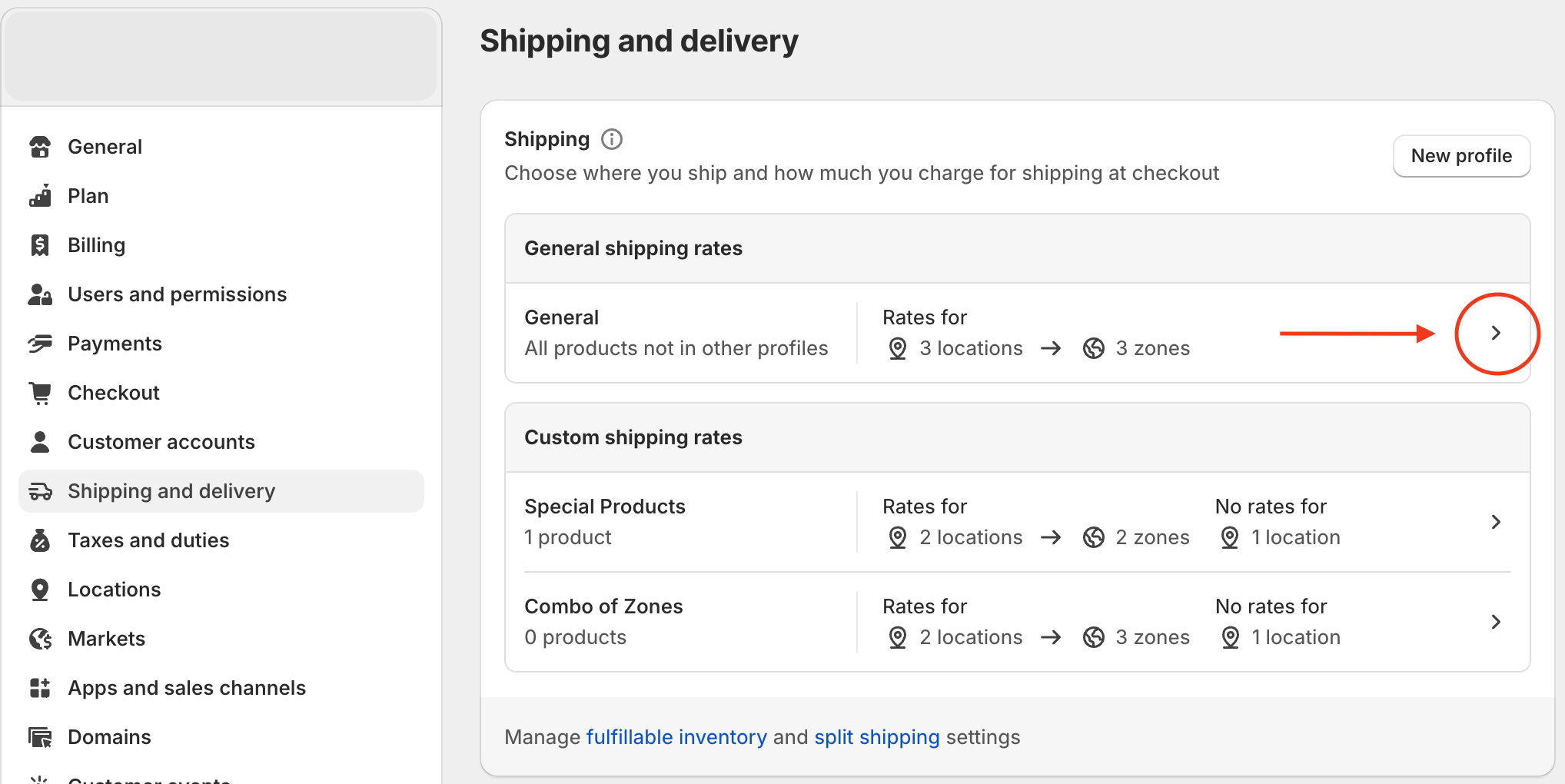
1. From the Shopify admin console, navigate to Settings → Shipping and Delivery.
2. Select the relevant shipping profile(s).
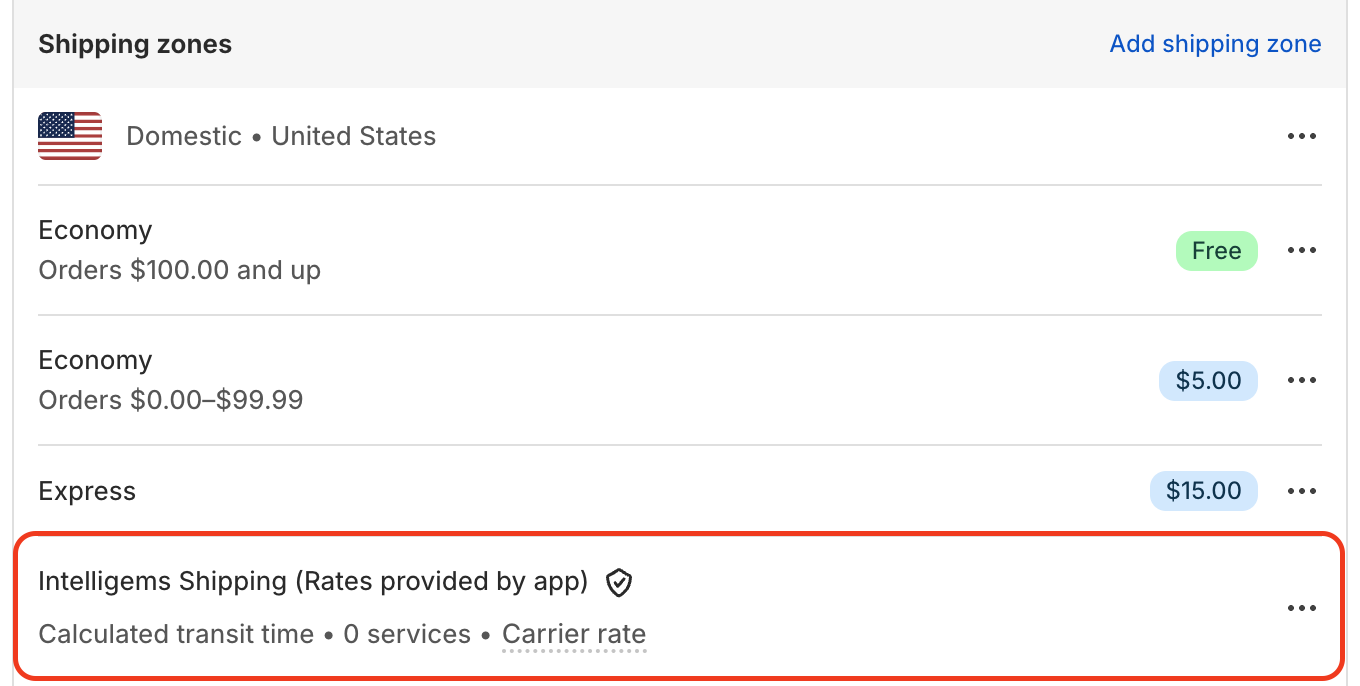
3. Scroll down to the section titled "Shipping zones" and navigate to the region(s) you've chosen to run your shipping test in. Verify that Intelligems is installed as a rate provider. This will look like the below.
## **Step 4: Check Your Site**
Now that the test is live, we recommend going through the add to cart and checkout process in a few incognito browsers so you can get added to different test groups and ensure everything is working as expected. If you have not already QA'ed your test before launching it, run [Atlas QA](/general-features/atlas-ai/atlas-qa.md) from the QA & Preview tab, then work through [this checklist](/shipping-experiences/shipping-test-qa-checklist.md). [Please reach out to our support team](https://portal.usepylon.com/intelligems/forms/intelligems-support-request) with any issues!
## **Starting a Free Shipping experience**
A Free Shipping experience discounts a qualifying rate to $0 once the cart hits your minimum. Your Shopify rates aren't touched, so Step 3 doesn't apply to it.
Confirm the Intelligems script is in your live theme, then go to **Shipping** in the left nav and click **Start** on a test or **Enable** on a personalization. Inside the experience the same control reads **Activate**, with **Schedule** in the dropdown beside it.
Then build a cart just under your minimum and one just over it, and confirm shipping drops to $0 at checkout only above the line.
## **What happens next?**
When you're ready to wrap up, see [Ending a Shipping Experience](/shipping-experiences/shipping-testing-getting-started/ending-a-shipping-test.md). Ending a Shipping Rates experience restores the rates that were removed when you started, so rolling out a winner means setting those rates to the winning values in Shopify yourself.
---
# Agent Instructions
This documentation is published with GitBook. GitBook is the documentation platform designed so that both humans and AI agents can read, navigate, and reason over technical content effectively. Learn more at gitbook.com.
## Querying This Documentation
If you need additional information that is not directly available in this page, you can query the documentation dynamically by asking a question.
Perform an HTTP GET request on the current page URL with the `ask` query parameter, and the optional `goal` query parameter:
```
GET https://docs.intelligems.io/shipping-experiences/shipping-testing-getting-started/starting-a-shipping-test.md?ask=&goal=
```
`ask` is the immediate question: it should be specific, self-contained, and written in natural language.
`goal` is optional and describes the broader end goal you are ultimately trying to accomplish on behalf of the user. GitBook uses it to tailor the answer towards what is most useful for that goal.
The response will contain a direct answer to the question and relevant excerpts and sources from the documentation.
Use this mechanism when the answer is not explicitly present in the current page, you need clarification or additional context, or you want to retrieve related documentation sections.