> For the complete documentation index, see [llms.txt](https://docs.intelligems.io/llms.txt). Markdown versions of documentation pages are available by appending `.md` to page URLs; this page is available as [Markdown](https://docs.intelligems.io/developer-resources/external-api/automations-and-guides/build-an-automated-test-monitoring-integration-for-slack.md).
# Build an Automated Test Monitoring Integration for Slack
Learn how to use the Intelligems API to create your own proactive slack notification that shares the health of your tests.
## Overview:
This guide explains how to leverage the Intelligems External API & Claude Code to build a proactive monitoring system that sends split test health updates directly to Slack.
By automating these notifications, your team can stay informed on experiment performance and quickly identify potential issues without needing to manually check the Intelligems dashboard.
{% hint style="info" %}
Note: Your computer needs to be actively online and connected to the internet in order for this alert to be sent. If you'd like this to run even if your computer is offline, consider using GitHub Actions instead.
{% endhint %}
{% hint style="success" %}
*Don't have time to set this up manually? Use* [*https://github.com/Victorpay1/intelligems-plugins*](https://github.com/Victorpay1/intelligems-plugins) *— Claude will ask you a few setup questions and handle the rest automatically. Just run /test-health-check-setup after installing.*
{% endhint %}
### Prerequisite
* Requires a Claude Account (Pro, Max, Teams, or Enterprise)
## How To Create An Automated Test Monitoring Integration for Slack
### Step 1: [Install Claude Code](https://code.claude.com/docs/en/overview#get-started-in-30-seconds)
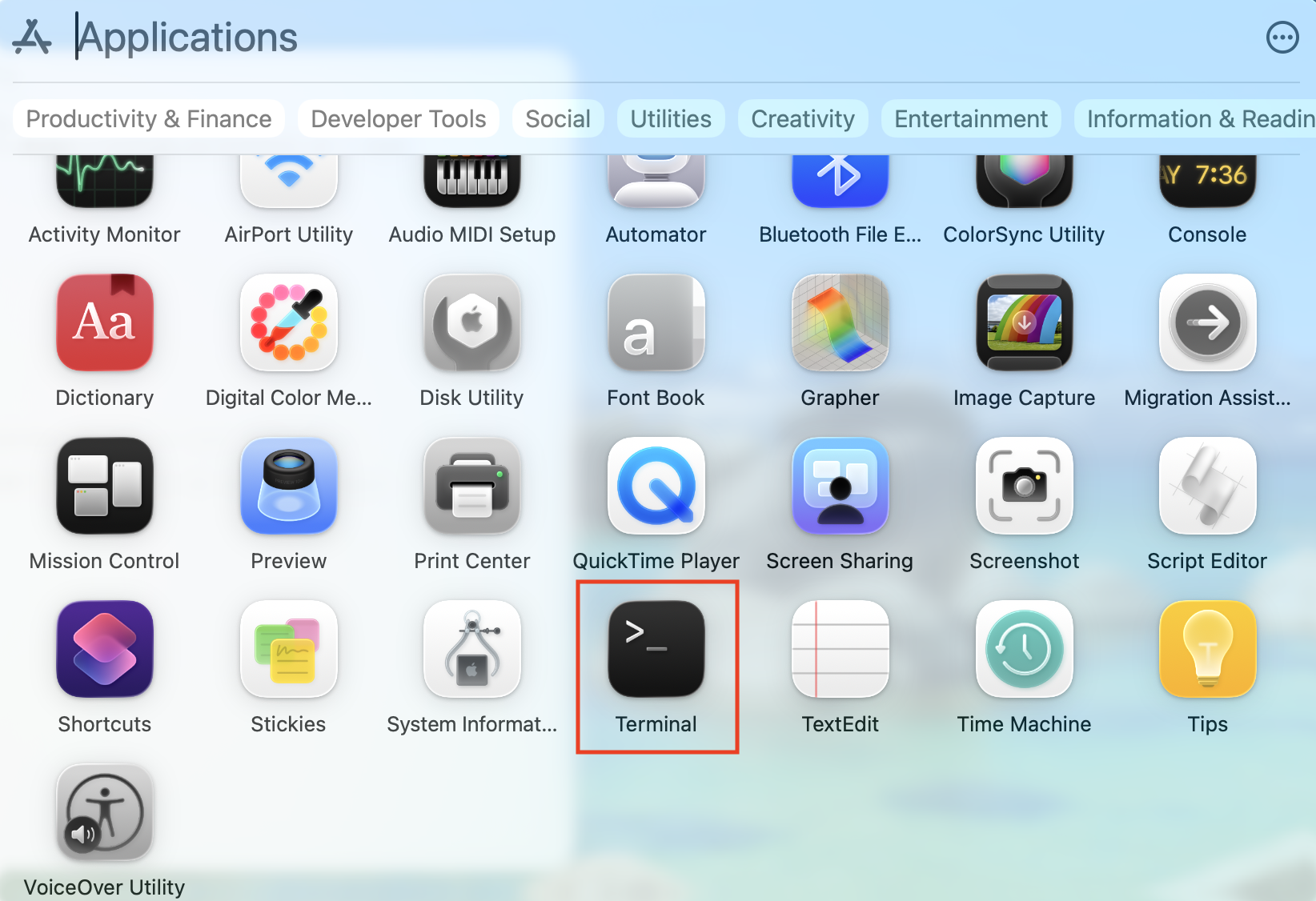
Find & open the Terminal Application on your computer.
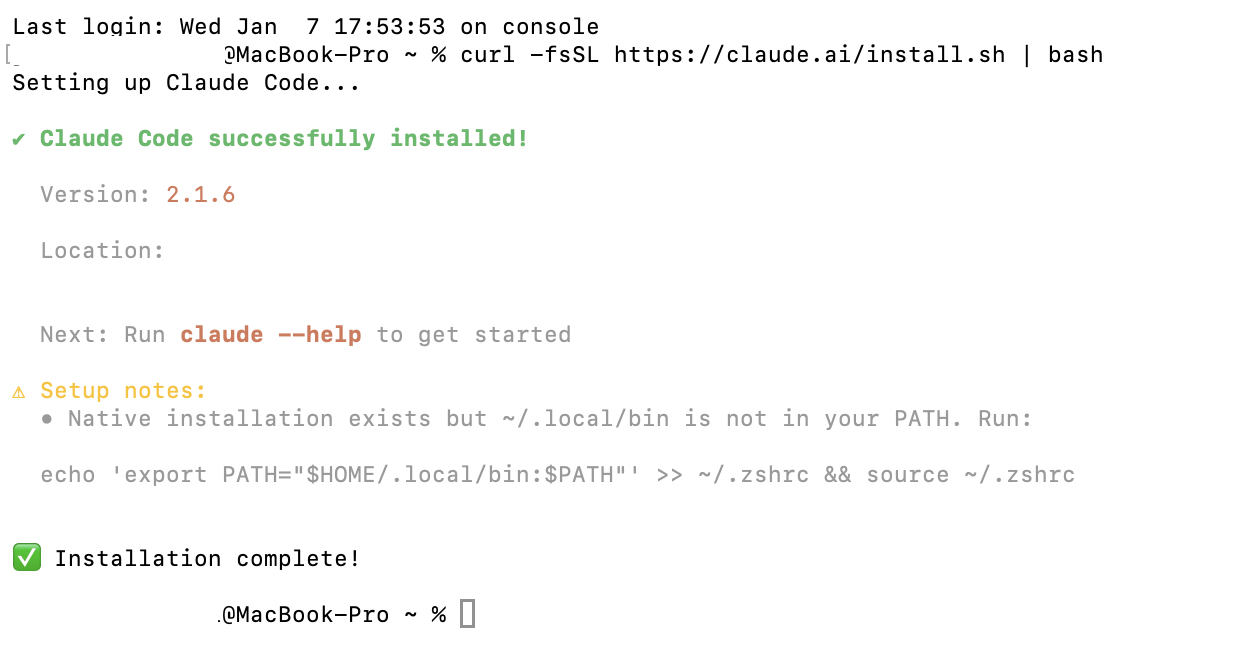
Install Claude Code into Terminal via Claude's instructions [here](https://code.claude.com/docs/en/overview#get-started-in-30-seconds).
### Step 2: Set Up Your Project
In Terminal, paste in the following & hit enter:
````
mkdir intelligems-slack-health-check
cd intelligems-slack-health-check
# Create a virtual environment
python3 -m venv venv
source venv/bin/activate # On Windows: venv\Scripts\activate
# Create project files
touch intelligems_health_check.py
touch config.py
touch requirements.txt
touch .env
```
### Step 2: Install Dependencies
Add to `requirements.txt`:
```
requests==2.31.0
python-dotenv==1.0.0
````
After the above runs, also paste in the below & hit enter:
```
cat > requirements.txt << 'EOF'
requests==2.31.0
python-dotenv==1.0.0
EOF
```
Finally, after the above runs, paste in the below & hit enter:
```
pip install -r requirements.txt
```
### Step 3: Get Your Intelligems API Key & Slack Webhook URL
#### Intelligems API Key:
\[[How to get Intelligems API Key](https://docs.intelligems.io/developer-resources/external-api#getting-started)]
#### Slack Webhook URL:
* Go to
* Click "Create New App" → "From scratch"
* Name it "Intelligems Health Check" and select your workspace
* In the left sidebar, click "Incoming Webhooks"
* Toggle "Activate Incoming Webhooks" to On
* Click "Add New Webhook to Workspace"
* Select the channel where you want health checks posted
* Copy the webhook URL
### Step 4: Configure Environment Variables
Take the below code, update with your API key and Webhook URL, and then paste into Terminal. Press enter.
```
echo "INTELLIGEMS_API_KEY=your_actual_api_key_here" > .env
echo "SLACK_WEBHOOK_URL=https://hooks.slack.com/services/YOUR/ACTUAL/WEBHOOK" >> .env
```
### Step 5: Create Configuration File
The below code can be copied and pasted into Terminal.
```
cat > config.py << 'EOF'
import os
from dotenv import load_dotenv
load_dotenv()
# API Configuration
INTELLIGEMS_API_KEY = os.getenv('INTELLIGEMS_API_KEY')
SLACK_WEBHOOK_URL = os.getenv('SLACK_WEBHOOK_URL')
INTELLIGEMS_API_BASE = "https://api.intelligems.io/v25-10-beta"
# Health Check Thresholds
MIN_SESSIONS_FOR_SIGNIFICANCE = 100
MIN_ORDERS_FOR_SIGNIFICANCE = 10
CONVERSION_DROP_ALERT_THRESHOLD = 0.20 # 20% drop triggers alert
MIN_CONFIDENCE_LEVEL = 0.95 # 95% confidence
# Formatting
TIMEZONE = "UTC"
EOF
```
#### Customizing Thresholds
In the above script, you can customize the numbers under # Health Check Thresholds to make the alerting more in tune with your business. Learn more below:
**MIN\_ORDERS\_FOR\_SIGNIFICANCE = 10**
**What it does:** Sets the minimum number of total orders/conversions before the test has enough data.
**If you change it:**
* **Lower (e.g., 5):** More lenient - will consider tests with fewer orders as having sufficient data.
* **Higher (e.g., 50):** More strict - requires more conversions before considering results meaningful.
**Example:** If set to 10 and your test only has 7 total orders, Slack will show: "⚠️ Guardian detected some issues: Insufficient orders (7 orders)"
**Recommendation:** For price/shipping tests with lower conversion rates, you might want this lower. For high-volume content tests, keep it higher.
***
**CONVERSION\_DROP\_ALERT\_THRESHOLD = 0.20**
**What it does:** Triggers an alert if the variant's conversion rate drops by this percentage compared to control.
**If you change it:**
* **Lower (e.g., 0.10):** More sensitive - will alert on a 10% drop. Good if you want early warnings.
* **Higher (e.g., 0.30):** Less sensitive - only alerts on 30%+ drops. Use if you're okay with bigger swings.
**Example:**
* Control has 5% conversion rate
* Variant has 3.5% conversion rate
* Drop = (5% - 3.5%) / 5% = 30% drop
* If threshold is 0.20 (20%), this triggers: "⚠️ Guardian detected some issues: Conversion rate dropped 30.0%"
**Important:** This is calculated as: `(control - variant) / control`
***
**MIN\_CONFIDENCE\_LEVEL = 0.95**
**What it does:** Sets the statistical confidence level required before considering results "significant."
**If you change it:**
* **Lower (e.g., 0.90 or 90%):** Results will be marked as significant sooner, but with less certainty.
* **Higher (e.g., 0.99 or 99%):** Requires stronger evidence before declaring significance, takes longer but more reliable.
**Example:** If set to 0.95 (95%) and your test shows 92% confidence, Slack will show:
> "These results are not yet statistically significant... Guardian will continue monitoring for critical issues."
Once it reaches 95%+ confidence, it will show:
> "✅ Results are statistically significant at 95.3% confidence."
**Industry standard:** 95% (0.95) is typical for most A/B tests. Don't go below 90% unless you understand the risks.
### Step 6: Create Main Health Check Script
Copy & paste the below code into Terminal. Press enter.
```
cat > intelligems_health_check.py << 'EOF'
import requests
import json
from datetime import datetime, timedelta
from typing import Dict, List, Optional
from config import (
INTELLIGEMS_API_KEY,
SLACK_WEBHOOK_URL,
INTELLIGEMS_API_BASE,
MIN_SESSIONS_FOR_SIGNIFICANCE,
MIN_ORDERS_FOR_SIGNIFICANCE,
CONVERSION_DROP_ALERT_THRESHOLD,
MIN_CONFIDENCE_LEVEL
)
class IntelligemsHealthCheck:
"""Fetch and analyze Intelligems test health data."""
def __init__(self):
self.headers = {
"intelligems-access-token": INTELLIGEMS_API_KEY,
"Content-Type": "application/json"
}
def get_active_tests(self) -> List[Dict]:
"""Fetch all currently running tests."""
url = f"{INTELLIGEMS_API_BASE}/experiences-list"
params = {"status": "started"}
try:
response = requests.get(url, headers=self.headers, params=params)
response.raise_for_status()
data = response.json()
return data.get("experiencesList", [])
except requests.exceptions.RequestException as e:
print(f"Error fetching active tests: {e}")
return []
def get_test_analytics(self, experience_id: str) -> Optional[Dict]:
"""Fetch analytics data for a specific test."""
url = f"{INTELLIGEMS_API_BASE}/analytics/resource/{experience_id}"
params = {"view": "overview"}
try:
response = requests.get(url, headers=self.headers, params=params)
response.raise_for_status()
return response.json()
except requests.exceptions.RequestException as e:
print(f"Error fetching analytics for {experience_id}: {e}")
return None
def calculate_runtime(self, started_ts: Optional[float]) -> str:
"""Calculate how long a test has been running."""
if not started_ts:
return "N/A"
start_time = datetime.fromtimestamp(started_ts / 1000)
runtime = datetime.now() - start_time
days = runtime.days
hours = runtime.seconds // 3600
if days > 0:
return f"{days} day{'s' if days != 1 else ''}, {hours} hour{'s' if hours != 1 else ''}"
else:
return f"{hours} hour{'s' if hours != 1 else ''}"
def analyze_variation_metrics(self, metrics: List[Dict]) -> Dict:
"""Extract and organize metrics by variation."""
variation_data = {}
for metric in metrics:
var_id = metric.get("variation_id")
if not var_id:
continue
if var_id not in variation_data:
variation_data[var_id] = {
"visitors": 0,
"orders": 0,
"conversion_rate": 0,
"revenue_per_session": 0,
"aov": 0
}
# Extract key metrics
if "n_visitors" in metric:
variation_data[var_id]["visitors"] = metric["n_visitors"].get("value", 0)
if "n_orders" in metric:
variation_data[var_id]["orders"] = metric["n_orders"].get("value", 0)
if "conversion_rate" in metric:
conv_rate = metric["conversion_rate"]
variation_data[var_id]["conversion_rate"] = conv_rate.get("value", 0)
variation_data[var_id]["confidence"] = conv_rate.get("confidence", 0)
if "net_revenue_per_visitor" in metric:
variation_data[var_id]["revenue_per_session"] = metric["net_revenue_per_visitor"].get("value", 0)
if "net_revenue_per_order" in metric:
variation_data[var_id]["aov"] = metric["net_revenue_per_order"].get("value", 0)
return variation_data
def get_variation_name(self, variations: List[Dict], var_id: str) -> str:
"""Get the name of a variation by ID."""
for var in variations:
if var.get("id") == var_id:
return var.get("name", "Unknown")
return "Unknown"
def assess_health(self, test: Dict, analytics: Dict) -> Dict:
"""Assess the health status of a test."""
metrics = analytics.get("metrics", [])
variations = test.get("variations", [])
variation_data = self.analyze_variation_metrics(metrics)
# Calculate totals
total_visitors = sum(v["visitors"] for v in variation_data.values())
total_orders = sum(v["orders"] for v in variation_data.values())
# Find control and variant
control = None
variant = None
for var in variations:
var_id = var.get("id")
if var_id not in variation_data:
continue
if var.get("isControl"):
control = {**variation_data[var_id], "name": var.get("name"), "id": var_id}
else:
variant = {**variation_data[var_id], "name": var.get("name"), "id": var_id}
# Health assessment
issues = []
is_healthy = True
# Check sample sizes
if total_visitors < MIN_SESSIONS_FOR_SIGNIFICANCE:
issues.append(f"Low sample size ({total_visitors} sessions)")
is_healthy = False
if total_orders < MIN_ORDERS_FOR_SIGNIFICANCE:
issues.append(f"Insufficient orders ({total_orders} orders)")
is_healthy = False
# Check for statistical significance
if variant and control:
if variant.get("confidence", 0) < MIN_CONFIDENCE_LEVEL:
issues.append("Not yet statistically significant")
# Check for concerning drops
if control["conversion_rate"] > 0:
conv_drop = (control["conversion_rate"] - variant["conversion_rate"]) / control["conversion_rate"]
if conv_drop > CONVERSION_DROP_ALERT_THRESHOLD:
issues.append(f"Conversion rate dropped {conv_drop*100:.1f}%")
is_healthy = False
return {
"is_healthy": is_healthy,
"issues": issues,
"total_visitors": total_visitors,
"total_orders": total_orders,
"control": control,
"variant": variant
}
class SlackNotifier:
"""Format and send health check messages to Slack."""
def __init__(self):
self.webhook_url = SLACK_WEBHOOK_URL
def format_health_check_message(self, test: Dict, health: Dict, runtime: str) -> Dict:
"""Format a health check message for Slack."""
# Determine header emoji and status
if health["is_healthy"]:
header_emoji = "✅"
status_message = "Your test is running smoothly. Guardian checked for issues and everything looks good."
else:
header_emoji = "⚠️"
status_message = f"Guardian detected some issues: {', '.join(health['issues'])}"
test_type = self._format_test_type(test.get("type", ""))
# Build blocks for Slack message
blocks = [
{
"type": "header",
"text": {
"type": "plain_text",
"text": f"{header_emoji} TEST HEALTH CHECK"
}
},
{
"type": "section",
"text": {
"type": "mrkdwn",
"text": f"✏️ *{test.get('name', 'Unknown Test')}*\n\n{status_message}"
}
},
{
"type": "section",
"fields": [
{
"type": "mrkdwn",
"text": f"⏱️ *Runtime*\n{runtime}"
},
{
"type": "mrkdwn",
"text": f"👥 *Total Sessions*\n{health['total_visitors']:,}"
}
]
}
]
# Add control and variant groups
if health["control"]:
control = health["control"]
blocks.append({
"type": "section",
"fields": [
{
"type": "mrkdwn",
"text": f"📊 *Control Group*\n{control['visitors']:,} sessions, {control['orders']} orders"
},
{
"type": "mrkdwn",
"text": f"📊 *New Group 1*\n{health['variant']['visitors']:,} sessions, {health['variant']['orders']} orders" if health['variant'] else "N/A"
}
]
})
# Add key metrics
if health["control"] and health["variant"]:
control = health["control"]
variant = health["variant"]
# Calculate lifts
conv_lift = ((variant["conversion_rate"] - control["conversion_rate"]) / control["conversion_rate"] * 100) if control["conversion_rate"] > 0 else 0
rev_lift = ((variant["revenue_per_session"] - control["revenue_per_session"]) / control["revenue_per_session"] * 100) if control["revenue_per_session"] > 0 else 0
aov_lift = ((variant["aov"] - control["aov"]) / control["aov"] * 100) if control["aov"] > 0 else 0
blocks.append({
"type": "section",
"text": {
"type": "mrkdwn",
"text": (
f"📈 *Key Metrics*\n"
f"*Conversion Rate:* {control['conversion_rate']:.2%} → {variant['conversion_rate']:.2%} ({conv_lift:+.1f}%)\n"
f"*Revenue/Session:* ${control['revenue_per_session']:.2f} → ${variant['revenue_per_session']:.2f} ({rev_lift:+.1f}%)\n"
f"*AOV:* ${control['aov']:.2f} → ${variant['aov']:.2f} ({aov_lift:+.1f}%)"
)
}
})
# Add statistical outlook
if health["variant"]:
confidence = health["variant"].get("confidence", 0) * 100
if confidence >= MIN_CONFIDENCE_LEVEL * 100:
stat_message = f"✅ Results are statistically significant at {confidence:.1f}% confidence."
else:
stat_message = (
f"📊 *Statistical Outlook*\n\n"
f"These results are not yet statistically significant. With {health['control']['orders']} orders to the control and "
f"{health['variant']['orders']} to the variant, we're seeing promising early momentum. Small sample sizes can show "
f"dramatic differences — {health['variant']['orders']} to {health['control']['orders']} could easily reverse with more data.\n\n"
f"Guardian will continue monitoring for critical issues. If we see concerning patterns (like conversion rates dropping significantly), "
f"we'll alert you immediately."
)
blocks.append({
"type": "section",
"text": {
"type": "mrkdwn",
"text": stat_message
}
})
blocks.append({"type": "divider"})
return {"blocks": blocks}
def _format_test_type(self, test_type: str) -> str:
"""Format test type for display."""
type_map = {
"pricing": "Price Test",
"shipping": "Shipping Test",
"content/advanced": "Content Test",
"personalization/offer": "Offer Test"
}
return type_map.get(test_type, test_type.title())
def send_message(self, message: Dict) -> bool:
"""Send a message to Slack."""
try:
response = requests.post(
self.webhook_url,
json=message,
headers={"Content-Type": "application/json"}
)
response.raise_for_status()
return True
except requests.exceptions.RequestException as e:
print(f"Error sending Slack message: {e}")
return False
def main():
"""Main execution function."""
print(f"[{datetime.now().strftime('%Y-%m-%d %H:%M:%S')}] Starting Intelligems health check...")
# Initialize components
health_checker = IntelligemsHealthCheck()
notifier = SlackNotifier()
# Get all active tests
active_tests = health_checker.get_active_tests()
if not active_tests:
print("No active tests found.")
return
print(f"Found {len(active_tests)} active test(s)")
# Process each test
for test in active_tests:
test_name = test.get("name", "Unknown")
test_id = test.get("id")
print(f"\nProcessing: {test_name}")
# Get analytics
analytics = health_checker.get_test_analytics(test_id)
if not analytics:
print(f" ⚠️ Could not fetch analytics for {test_name}")
continue
# Calculate runtime
runtime = health_checker.calculate_runtime(test.get("startedAtTs"))
# Assess health
health = health_checker.assess_health(test, analytics)
# Format and send message
message = notifier.format_health_check_message(test, health, runtime)
if notifier.send_message(message):
print(f" ✅ Health check sent to Slack")
else:
print(f" ❌ Failed to send to Slack")
print(f"\n[{datetime.now().strftime('%Y-%m-%d %H:%M:%S')}] Health check complete!")
if __name__ == "__main__":
main()
EOF
```
### Step 7: Test the Script
Paste the below code into Terminal & press enter:
```
source venv/bin/activate
python intelligems_health_check.py
```
You should see an output like:
```
[2025-01-13 10:00:00] Starting Intelligems health check...
Found 2 active test(s)
Processing: Shipping $ Test
✅ Health check sent to Slack
Processing: Price Test v2
✅ Health check sent to Slack
[2025-01-13 10:00:05] Health check complete!
```
or
```
[2026-01-13 14:00:09] Starting Intelligems health check...
No active tests found.
```
### Step 8: Schedule Daily Execution
The below code will schedule the alert to fire everyday at 10AM (it uses the timezone of your device). If you don't want to customize the time, copy & paste this into Terminal before hitting enter. If you want to customize the time, continue reading below!
```
cat > ~/Library/LaunchAgents/com.intelligems.healthcheck.plist << 'EOF'
Labelcom.intelligems.healthcheckProgramArguments/Users/jericakrakowski/intelligems-slack-health-check/venv/bin/python/Users/jericakrakowski/intelligems-slack-health-check/intelligems_health_check.pyStartCalendarIntervalHour10Minute0StandardOutPath/Users/jericakrakowski/intelligems-slack-health-check/logs.txtStandardErrorPath/Users/jericakrakowski/intelligems-slack-health-check/error.txt
EOF
```
#### Customizing Alert
You can customize the time by updating the integer values under `Hour` and `Minute`.
Use 24-hour format:
* 9 AM = `9`
* 2 PM = `14`
* 6 PM = `18`
For example, the below will fire at 9:30AM.
```
Hour9Minute30
```
### You did it!
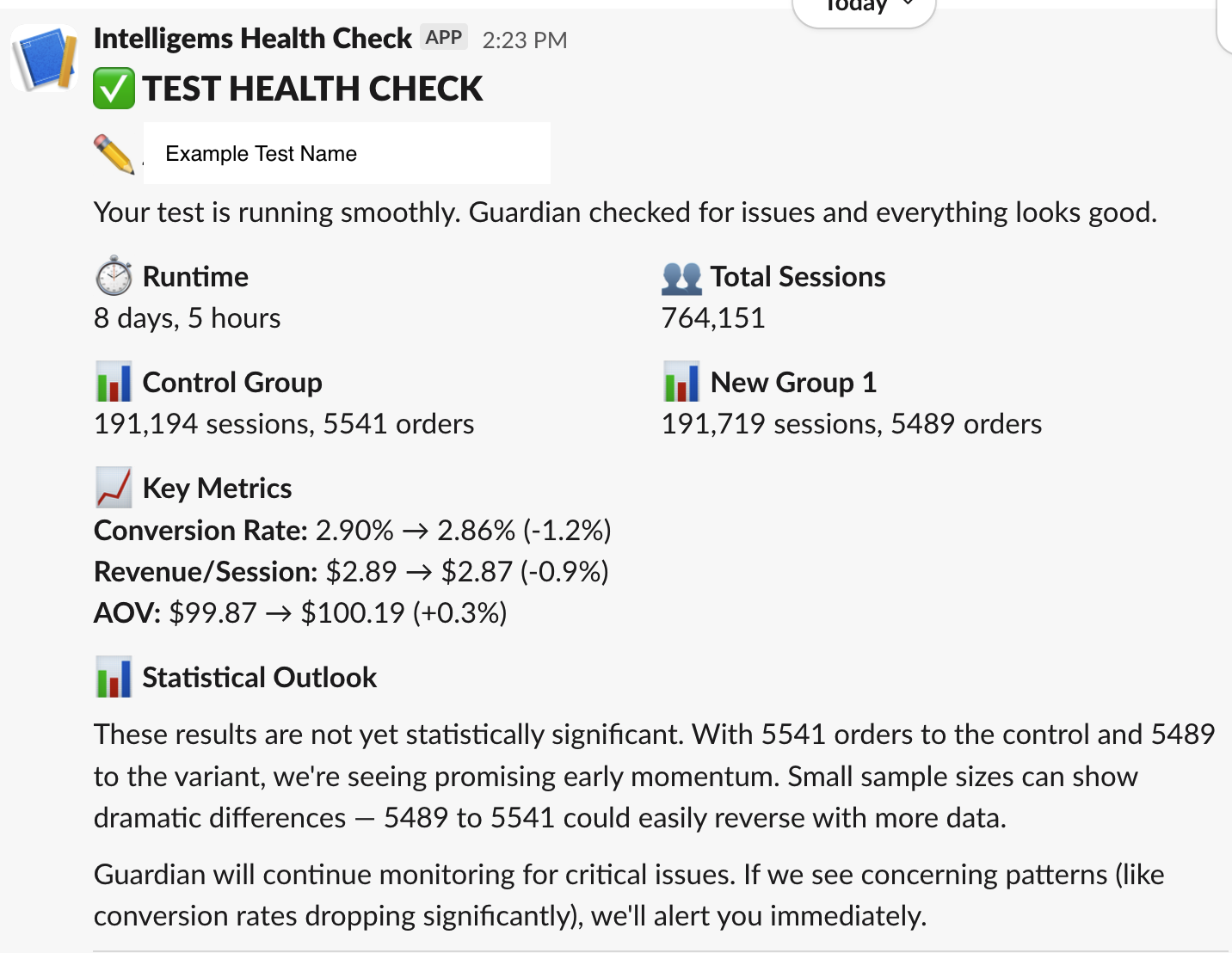
Now you'll get a Slack notification like the below each day with a health check for your Intelligems Tests.
## Bonus: Enhancements
You can customize this alert based on your business needs. Here's a few example ideas:
* Only trigger a Slack alert if there seems to be an issue with a test.
* e.g. Total visitors is below a threshold, one or more variants have fewer than X orders, one variant is getting significantly less traffic, large negative conversion rate drop
* Incorporate AI into your Slack Automation by sending the analytics data to an AI Agent first & then including their analysis in the result. Include details like your hypothesis of why you're running the test, the primary goal, any psychological factors, etc when uploading to the AI for context.
* Every 7 days since a test was pushed live, trigger an slack message for your CRO strategiest that contains an AI analysis of the test (statsig, deeper interpretation, recommendations) and trigger a slack message for your client that contains a shorter summary (focused on business impact).
* Include color-coded recommendations (e.g. blue = keep running, green = win, yellow = flat, red = loss)
* Combine with Intelligems webhooks to trigger a slack notification when a test ends that shares an AI analysis of the results (e.g. overall outcome, learnings, recommendations)
---
# Agent Instructions
This documentation is published with GitBook. GitBook is the documentation platform designed so that both humans and AI agents can read, navigate, and reason over technical content effectively. Learn more at gitbook.com.
## Querying This Documentation
If you need additional information that is not directly available in this page, you can query the documentation by asking a question.
Perform an HTTP GET request on the following URL with the `ask` and `goal` query parameters:
```
GET https://docs.intelligems.io/developer-resources/external-api/automations-and-guides/build-an-automated-test-monitoring-integration-for-slack.md?ask=&goal=
```
`ask` is the immediate question: it should be specific, self-contained, and written in natural language.
`goal` is what the user is ultimately trying to achieve, the reason they need the answer. Sharing it helps GitBook give you a better, more relevant answer. A goal is most helpful when it describes the outcome the user wants rather than restating the question. For example, with `ask=how do I create an API token`, a goal like `automate deployments from our CI pipeline` lets GitBook tailor the answer to that use case.
The response will contain a direct answer to the question and relevant excerpts and sources from the documentation.
Use this mechanism when the answer is not explicitly present in the current page, you need clarification or additional context, or you want to retrieve related documentation sections.