# Show Best Sellers Higher up on Your Homepage
[Why Run This Test](#why-this-works) | [VIDEO: How to Run This Test](#how-to-build-this-test-in-intelligems) | [Step-by-Step Guide](#step-1-create-your-checkout-test)
## What's a Homepage Best Sellers Test
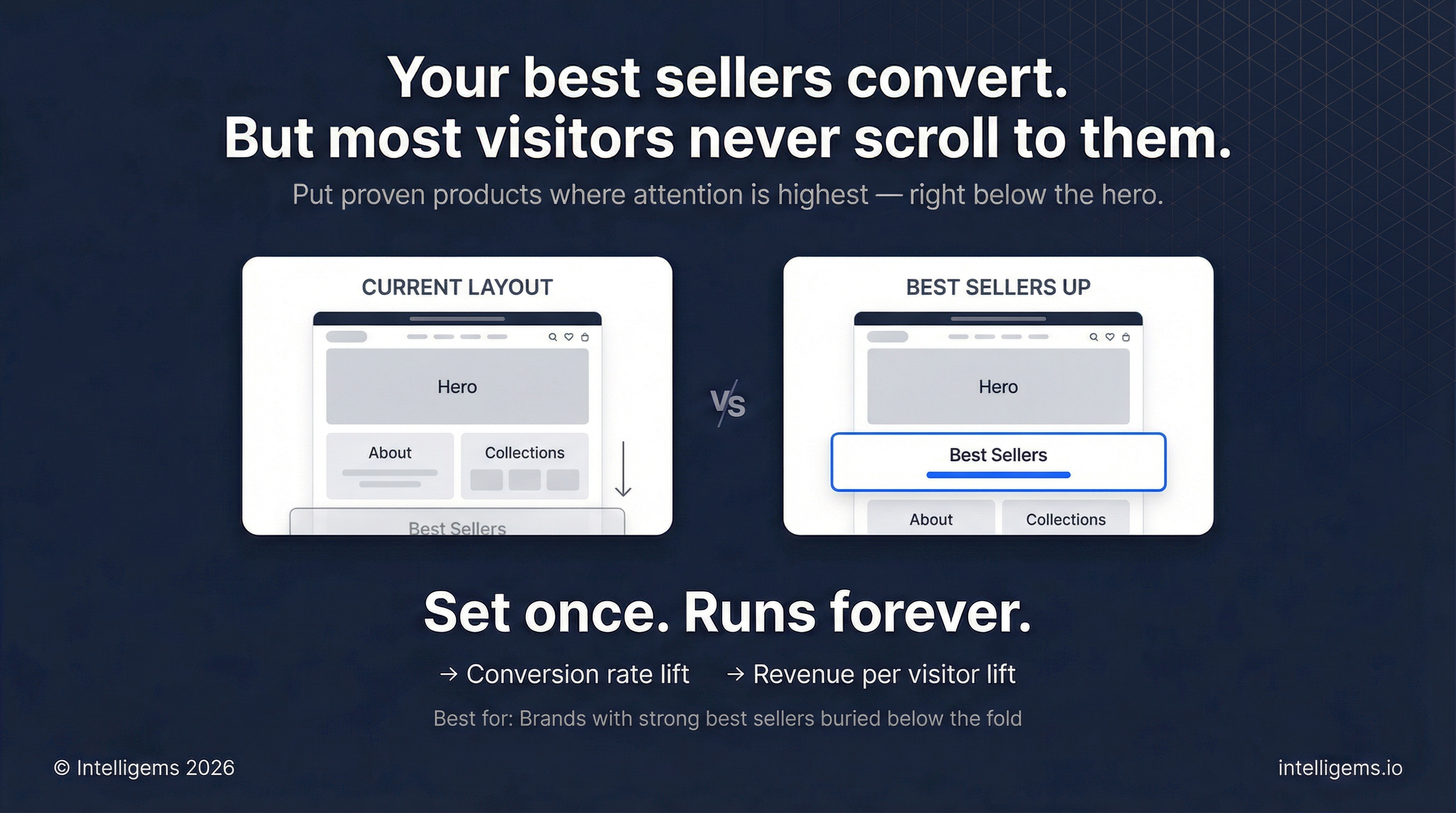
A Homepage Best Sellers Test compares conversion rates and revenue between visitors who see your best sellers section prominently near the top of your homepage versus those who see it in its current position further down the page.
The test compares two groups:
* **Control group**: Your current homepage with best sellers in the existing position
* **Test group**: Modified homepage template with best sellers moved higher (typically directly below the hero section)
This allows you to quantify whether prioritizing your proven products improves engagement and drives incremental revenue.
## Why This Works
Your best sellers are products that have already proven they convert. They've accumulated social proof through sales volume, reviews, and customer satisfaction. Moving these high-converting products higher on your homepage can:
* Reduce decision paralysis by immediately showcasing proven winners
* Leverage social proof when visitors first land on your site
* Shorten the path to products most likely to drive purchases
* Capitalize on the highest-attention real estate on your homepage
Most visitors spend the majority of their time "above the fold" or in the first few scrolls of a page. By moving best sellers up, you're putting your strongest products in front of the most eyeballs.
## How to Build This Test in Intelligems
{% embed url="" %}
### Step 1: Create Your Template Test in Intelligems
1. Go to **Tests → Create Test**
2. Select **Template**
3. Click **Create**
4. Name your test: "Homepage - Best Sellers Position"
5. Click **Next**
### Step 2: Configure Test Groups
1. In the **Test Groups** tab, name your control: "Control - Current Layout"
2. Name your test group: "Best Sellers Up"
3. For the test group template, select the new template you created: "Homepage - Best Sellers Up"
4. In the **Modifications tab**, click **Select a Template** for the Control group
5. Click **Homepage**, and then select your homepage template from the dropdown
1. It's typically called `index`
6. Click **Save**
7. In the Best Sellers Up section the the right, click **Duplicate Control**
8. Then click **Edit in Shopify** to edit the newly duplicated homepage template
9. This will open the theme in a new tab
### Step 3: Update Best Sellers Location in Shopify
1. In the Shopify theme editor, find your **Best Sellers** section (it might be called "Featured Collection", "Top Products", or similar)
2. Drag this section higher on the page - we recommend placing it directly below your hero/banner section
3. Review the new layout on desktop and mobile
4. Click **Save**
5. Exit the theme editor
### Step 4: Configure Test Settings
1. Back in Intelligems, choose your Audience in the **Targeting** tab. It's default to all visitors.
2. **Preview** your test on mobile and desktop
3. Click **Start Test**
### Step 5: Review results
After your test reaches statistical significance (typically 2-4 weeks depending on traffic), review the **Results** tab and roll out the winner as a **Personalization**.
### How to Measure Impact
* Conversion rate lift
* Revenue per visitor lift
* Profit per visitor lift
{% hint style="info" %}
Use the AI summary or Chat about your results to get deeper with your results
{% endhint %}
### Roll Out the winner
If the test wins:
1. Click **End Test**
2. In Shopify, go back to your **live homepage template**
3. Open the theme editor
4. Manually move the best sellers section to match the winning layout (drag it to the same position as your test template)
5. Click **Save**
6. The new layout is now live for all visitors
{% hint style="info" %}
Unlike other tests, homepage template winners must be manually implemented in your main template.
{% endhint %}